How to Join Minecraft Servers on Mobile (Pocket Edition)
Minecraft on phones runs Bedrock and keeps the Add Server button, so adding an address and port 19132 on iOS or Android is the easy version of joining.
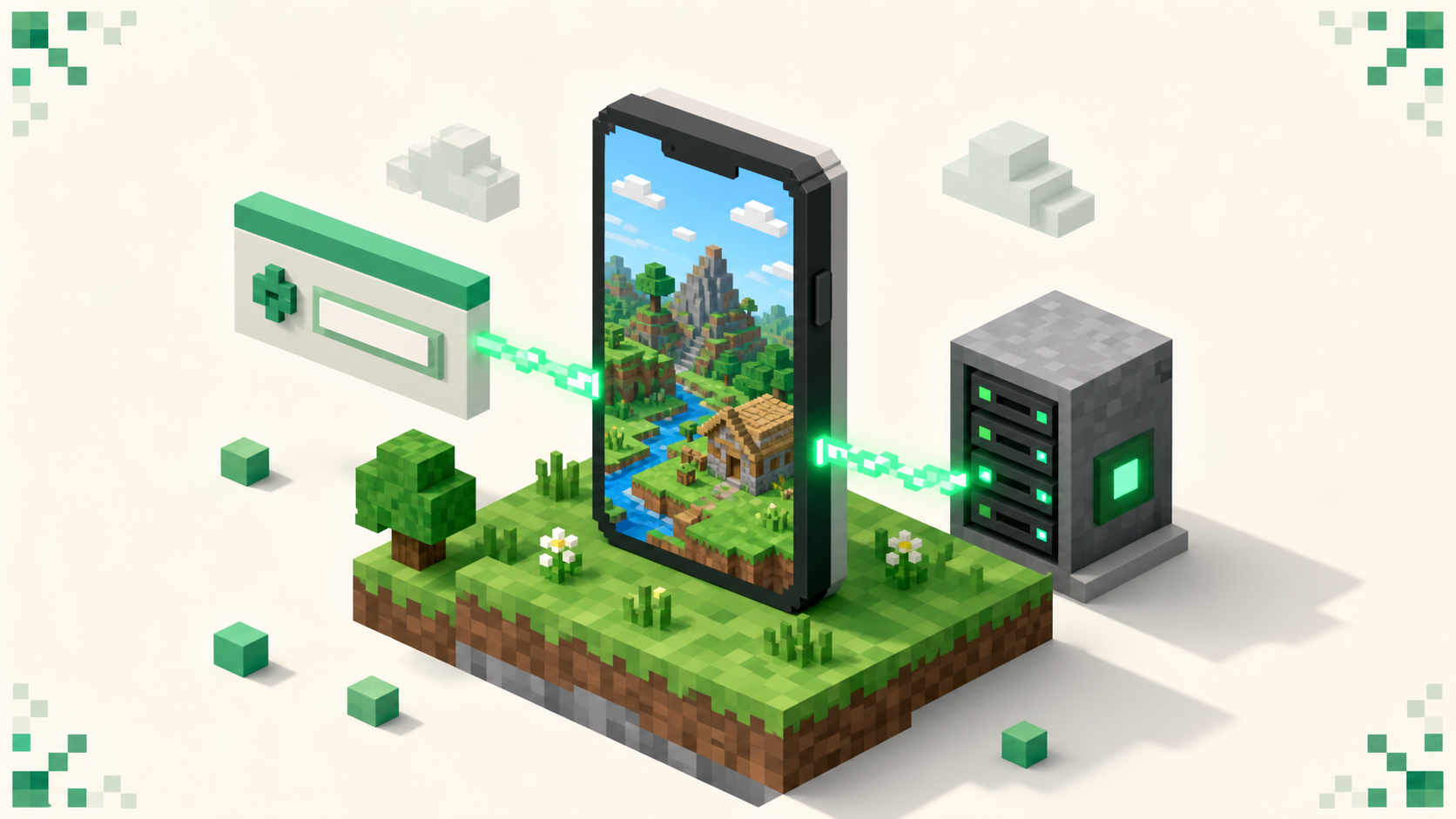
Joining a server on your phone is the easy version of this. The mobile game — the one most people still call Pocket Edition — runs Bedrock Edition, and unlike Switch, Xbox, and PlayStation, it keeps the Add Server button. You get a real field to type an address into, so there's no workaround or hidden menu to fight with. Paste in the address, set the port, and connect.
The mobile game was "Minecraft: Pocket Edition" until the Better Together Update in September 2017 dropped the subtitle. It's been Bedrock Edition ever since, the same engine that runs on Windows, Xbox, and console — fully crossplay with all of them — but "PE" stuck as a nickname and isn't going anywhere. So when a listing says Bedrock, that's your phone.
What you actually need is the game (owning a copy is what lets you play), a Microsoft account signed in, and the server's address plus port. If you just want the platform-agnostic walkthrough, how to join a Minecraft server covers the universal steps, and everything below is the phone-specific layer on top of it.
What you need before you start
You need a copy of Minecraft on your phone — owning it is what lets you play, and that's the whole of it.
You also need a Microsoft account signed into the game. Solo worlds work without it, but multiplayer doesn't — the featured server list might still look fine, while a custom server you add just refuses to load. Sign-in is specifically required for online multiplayer, so get that done first.
Then there's the server's exact Server Address and Port. Bedrock defaults to port 19132, and you'll usually need it. Bedrock doesn't support SRV records, which is the bit of plumbing that lets a clean domain hide its port — so even a tidy custom address normally still wants the port typed in by hand. Don't assume you can leave it blank.
Last thing: make sure it's a Bedrock or crossplay address, not a Java-only one. There's a whole section on that below, because it's the single most common reason a perfectly typed address won't connect. And copy the address straight from the listing rather than typing it out — get one character wrong and it'll still look right to you, but the server just won't load.
How to add a server on iOS and Android
The flow is the same on both platforms, so follow this whether you're on an iPhone or an Android phone.
- Open Minecraft and tap Play.
- Tap the Servers tab at the top of the Play menu, next to Worlds and Friends.
- Scroll past the list of featured and partner servers to the bottom and tap Add Server. This is the button consoles don't get — it's the reason mobile is the easy platform for this.
- Fill the three fields. Server Name is just a label, so call it whatever you like. Server Address is the hostname or IP from the listing. Port is usually 19132 unless the listing says otherwise.
- Save it. Depending on your app version the button reads Save or Add and play / Play — saving drops the server into your list, and Add and play saves it and connects you in one go.
- Tap the saved server in your list any time to connect. A green signal with a player count next to it means the server is online and reachable.
The iOS and Android experience here is effectively identical — same menus, same fields, same order. The only differences are OS-level, like the keyboard and which app store you got the game from, and none of that touches the join flow.
The Microsoft sign-in requirement
You can build and play your own worlds without signing in, but joining any multiplayer server needs a Microsoft account signed into the game. If you tap a server and nothing happens at all, an account that isn't signed in is the first thing to rule out.
There's a setting behind it that catches a lot of people. The account has to have multiplayer permitted — the Xbox privacy setting "You can join multiplayer games" must be set to Allow. If it's blocked, servers quietly refuse to connect even while you're signed in, with no obvious error to point you at the cause.
That setting is also why a kid's phone can see the server list but can't actually join anything. If the account is a child or teen inside a Microsoft Family group, an adult organizer has to grant the multiplayer permission from the family settings. It's a privacy-settings fix, not a Minecraft bug, so there's nothing to reinstall or repair in the game itself.
The good news is this is one-time setup. Once you're signed in with multiplayer allowed, the Add Server steps above just work, and you won't have to think about it again.
Why a Java-only address fails on your phone
Your phone is Bedrock, and Bedrock and Java are separate networks that can't talk to each other directly. Paste a Java-only address into the Bedrock Add Server fields and it won't connect no matter how carefully you type it — the problem isn't a typo, it's that the two editions aren't on the same network at all.
The reason, kept light: Java runs over TCP and Bedrock runs over UDP, and their default ports differ too (Java 25565, Bedrock 19132). These are genuinely different protocols, not the same game with the buttons rearranged.
There is a bridge, but it lives on the server. A Java server can run Geyser, usually paired with Floodgate, to translate Bedrock traffic so phone players can join a Java world. That setup is entirely the owner's job — there's nothing you install on your phone to make it happen. If you want the full picture, how to join a Java server on Bedrock with Geyser goes deeper.
So the practical version: when a server lists a Bedrock or crossplay address, use it and note the port. If it's Java-only with no Geyser bridge, your phone simply can't reach it, and no amount of fiddling changes that. Browsing the crossplay servers skips the whole issue, since those are built to take Bedrock players. And if you're still deciding what kind of server you even want, Minecraft server types explained runs through the gamemodes.
Battery, data, and connection on a phone
Multiplayer is harder on a phone than a solo world, and it's worth knowing where the limits are before a long session.
Battery goes first. Minecraft keeps the screen on and the chip working the whole time, so phones drain fast and warm up, and on a hot day or inside a thick case you'll hit thermal throttling — that's the stutter that shows up when the phone gets too hot and slows itself down. Keep a charger within reach for anything longer than a quick visit.
Data is more modest than people expect. The in-game stream is steady rather than heavy, but it's continuous, so over a few hours on a metered plan it adds up. The single biggest hit is the resource-pack download some servers push on your first join. Wi-Fi is the safer choice when you have it.
Connection stability matters more on mobile than raw speed. Drifting between Wi-Fi and cellular, or sitting on a weak signal, is what produces timeouts and the "Unable to connect to world" message — a stable network beats a fast-but-flaky one every time. Ping is the other half of it: pick a server near your region, because high ping shows up as rubber-banding and delayed block placement, and that lag is more noticeable on touch controls than it is with a mouse.
If a server won't load, restart the Minecraft app before you do anything else — it clears up a surprising number of cases on its own. If that doesn't do it, re-check the address, confirm the port is 19132, and make sure you're signed in.
Finding mobile-friendly servers
The smoothest path on a phone is a server built for Bedrock or crossplay from the start, so you sidestep edition mismatches entirely. Rather than chase named servers, it's better to look at what's actually live and active right now.
What you're judging is the same on a phone as anywhere. You want a server that's genuinely populated, with solid uptime and active moderation keeping cheaters out, and a region close enough to you that your ping stays low. Nothing exotic, just the basics that make a server worth your time.
The monthly vote rankings are a good live read on which crossplay communities are busy at the moment — servers are ordered by votes that reset each calendar month, so a high spot means people are showing up now, not last year. The crossplay servers list is where to find the current lineup; copy the address from a listing and you're set.
And if a server clicks with you, voting is how it climbs the monthly rankings — you can do it straight from your phone's browser, no extra setup.
FAQ
Can I use a controller on Minecraft mobile servers?
Yes. Bedrock on phones supports Bluetooth controllers, and once a controller is paired at the OS level the game picks it up automatically — the input switches between touch and controller on the fly, with no setting to flip inside Minecraft. It works the same in multiplayer as in single-player, so a paired controller carries straight onto any server you join. Touch is still the fallback any time the controller disconnects mid-session.
The featured server list shows up but Add Server is greyed out or missing — why?
That's almost always the sign-in state. The partner servers at the top of the Servers tab are allowed to display before you've signed in, but the Add Server button at the bottom only becomes usable once you're signed into a Microsoft account with multiplayer permitted. Sign in, make sure the "You can join multiplayer games" privacy setting is set to Allow, and the button comes back. On a very old app version, updating Minecraft from your app store is the other thing that occasionally restores it.
Can I play on the same server as my friend on Java from my phone?
Only if that server is bridging the two editions. Your phone is Bedrock and your friend's Java client are on separate networks, so a plain Java server won't let you both in. If the owner runs Geyser with Floodgate, the server accepts Bedrock players alongside Java ones and you can share the same world — but that's the owner's setup, not something either of you toggles on. A crossplay-listed server already does this, which is why those are the safe pick for a mixed Java-and-Bedrock group.
Does the world I build on my phone sync to my computer?
Signing into the same Microsoft account carries your profile and purchases across supported devices, but ordinary single-player worlds do not automatically sync between a phone and a Bedrock PC. To move a world, use Realms or the export/import and platform cloud-transfer method supported by your devices. Servers are different, though — those live on the host, not your device, so there's nothing to sync. You add the same address and port on every device and you're connecting to the one shared world each time.