How to Add a Server on Minecraft Bedrock (Windows 10 & 11)
Add a server in Minecraft Bedrock on Windows 10 and 11 from the Play screen: open the Servers tab, hit Add Server, then enter a name, address, and 19132 port.
Windows 10 and 11 run Minecraft Bedrock Edition, and Bedrock has a real Add Server box built right into the game: open Play, go to the Servers tab, scroll to the bottom, and fill in a name, an address, and a port. That's the same three-field form you'd see on a phone or an Xbox, and it's the one thing that trips people up on a PC, because the Java version sitting in the same Start menu hides its own Add Server behind a Multiplayer button and doesn't ask for a port the same way.
Bedrock and Java are two different apps on the same PC
Windows is the only desktop where you can end up with both editions installed side by side, and the name in your Start menu is the tell. "Minecraft" (no subtitle) is Bedrock, the one you got from the Microsoft Store or the Xbox app. "Minecraft: Java Edition" is a separate program with its own launcher. This guide is about the Bedrock one, so make sure that's what you opened.
The quickest way to check which you launched is the main menu itself. Bedrock greets you with one big Play button that opens tabs across the top: Worlds, Friends, and Servers. Java shows a vertical stack instead, with a Multiplayer button partway down. If you see Multiplayer, you're on Java and this walkthrough won't match your screen.
One more thing before you add anything: you have to be signed in to a Microsoft account for the Servers tab to load external servers at all. If that tab looks empty or greyed out, sign in first.
And the part that saves the most frustration: a Java server address will not connect from Bedrock, and a Bedrock address won't connect from Java. They speak different network protocols. The two editions can only meet when the server runs a bridge, which I'll get to in the FAQ.
Add a server on Bedrock, click by click
From the main menu, hit Play, then click the Servers tab. It's the third tab across the top, after Worlds and Friends. The screen opens on a column of large featured server tiles you didn't add yourself. Scroll straight past those, all the way to the bottom, and you'll find Add Server.
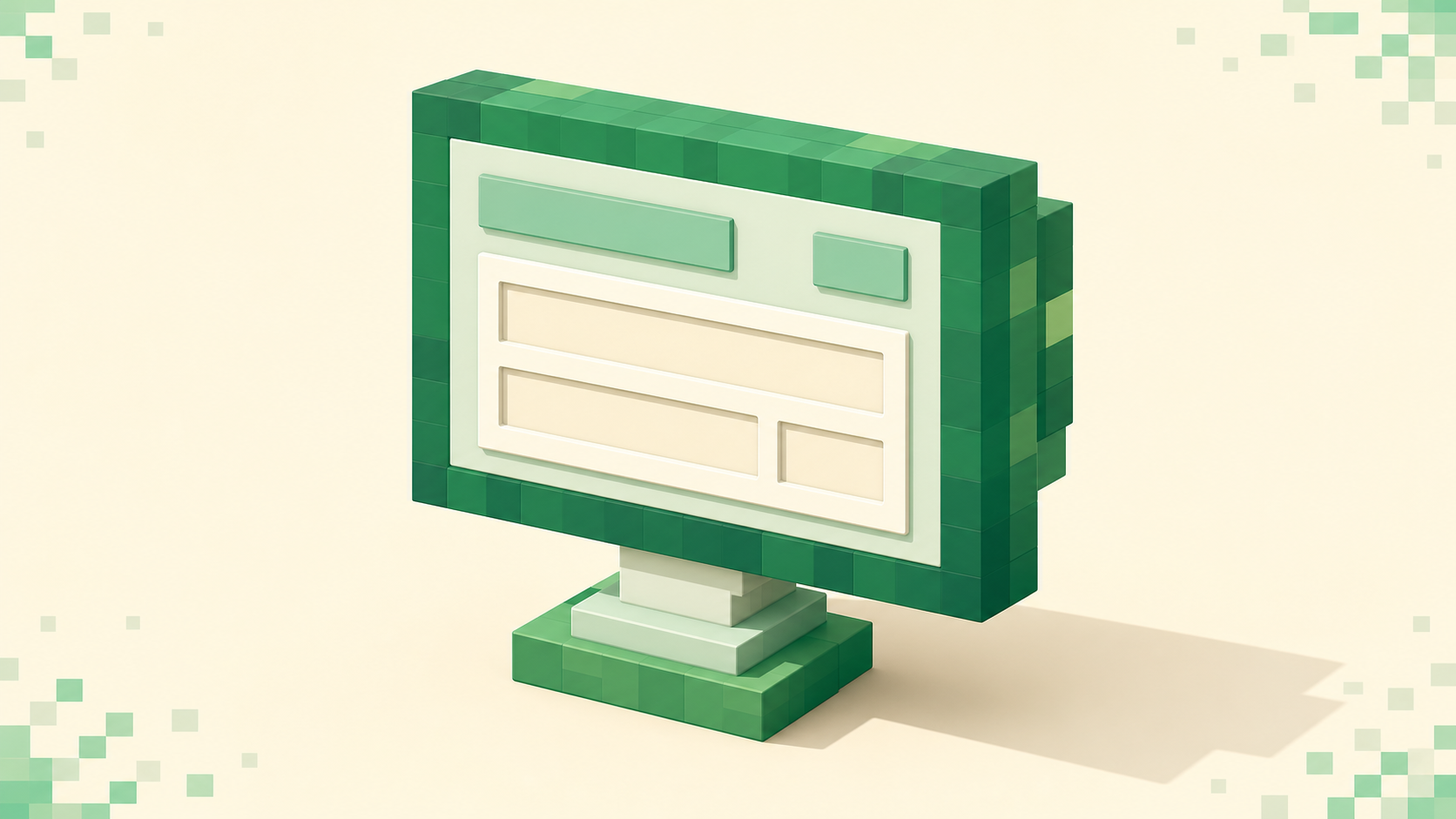
That opens a small pop-up with three fields:
- Server Name — any label you like. It's cosmetic, just what the entry reads as in your list, so "Friend's SMP" or "Skyblock" is fine.
- Server Address — the hostname or IP, like
play.example.netor a raw numeric address. - Port — this defaults to 19132, the Bedrock default. Only change it if the server explicitly handed you a different number.
Fill those in and click Save. Your new server drops into the list below the featured tiles. Select it and hit Join Server to connect right away, or if it saved without connecting, just tap it and choose Play.
Made a typo? You don't have to delete and start over. Each entry you added has a pencil (edit) icon that reopens the same three-field form so you can fix the address or port. And these entries stick around, they persist between sessions, so once a server is in the list it's there next time you launch. The whole flow is the same across devices, so if you've done this on a phone or console before it'll feel familiar. The cross-platform version of these steps walks through the phone, console, and tablet layouts if you bounce between them.
Where to get the address and port
The address is whatever the server owner or listing gave you: usually a hostname like play.example.net, sometimes a raw IP. On Bedrock the port lives in its own separate box, which is the big difference from Java, where you'd cram address and port into one field. If the listing shows a single set of numbers with no port called out, the address goes in Server Address and you leave Port at 19132. If it lists a port explicitly, type that number into the Port box.
Not sure where the address even comes from, or which part is the port? How to find a Minecraft server IP and port breaks down where owners publish it and how to read a combined address.
Here's the mistake I see most often on PC: people paste the whole string play.example.net:19132 into the Server Address box, colon and all. Bedrock wants those split. Strip the colon and the number off the address, put play.example.net in Server Address, and put 19132 (or whatever came after the colon) in the Port box. Leave a colon in the address field and the connection just fails, because Bedrock reads the whole thing as one broken hostname.
The Java multiplayer screen, so you stop mixing them up
Since the two editions live on the same PC, it helps to know what the other screen looks like so you don't fight the wrong form. In Java Edition you click Multiplayer, then Add Server, and the pop-up has only two fields: Server Name and Server Address. There's no separate port box at all. On Java the port gets appended to the address with a colon, like example.net:25565, and if you leave the port off entirely Java assumes 25565, the Java default.
So the colon is your tell. If a friend handed you an address ending in :25565, that's a Java server and it belongs on the Java screen, not Bedrock's. This is exactly why a copied address sometimes seems to "do nothing" on a PC: you had the right idea and the right form of the game open, just the wrong edition for that address. When in doubt, the port number gives it away, since 25565 is Java and 19132 is Bedrock.
If it won't connect after you add it
The server saved fine but joining fails? A few things go wrong at this stage, and each has a specific look.
The most common is "Unable to connect to world." That's the catch-all Bedrock throws when the address or port is wrong, the server is offline, or there's a version gap. Re-open the entry with the pencil icon and read the two boxes carefully: address in Server Address, port in Port, no stray colon. Nine times out of ten the fix is right there.
If you instead see "This server is not compatible with your current version," that's a version mismatch. Bedrock surfaces it plainly when the server is running an older or newer build than your client. Walk through why the not-compatible message shows and how to line up versions to sort out which side is behind.
Then there's the quiet one: you tap Join Server and it just bounces you back to the list with no message at all. No error, nothing. That silent bounce has its own causes and fixes, covered in when Bedrock can't connect with no error.
Before you assume your setup is broken, confirm the server is actually running. A lot of "it won't let me in" turns out to be a server that's simply down. Check whether the server is online before you join and you'll rule that out in a few seconds. Once you know it's up, your two self-checks are the address-versus-port boxes and the version match, in that order.
FAQ
Is adding a server different on Windows 10 versus Windows 11?
No difference at all. Both run the exact same unified Bedrock app from the Microsoft Store, with the same Servers tab and the same Add Server form. The Windows version only changes the operating system around the game; it doesn't touch the in-game menus, so any Bedrock steps you read work identically on 10 and 11.
Can I add a Java Edition server to Windows Bedrock?
Not directly. Bedrock can't speak the Java protocol, so a Java-only address will never resolve from the Bedrock Add Server box. The server itself has to run a bridge called Geyser for Bedrock clients to join, and even then it's set up on the server's end, not yours. What Geyser and Floodgate do explains why the two editions can't cross without that proxy sitting in the middle.
How many servers can I save, and where do the saved ones go?
Your added servers stack up in a list below the featured tiles on the Servers tab, and they persist between launches, so they're waiting for you every time you open the game. There's no practical cap on how many you keep. Each entry has its own controls to edit (the pencil) or remove it, so you can clean up or fix any one without disturbing the rest.
The server gave me an address but no port, what do I put?
Leave the Port box at 19132, the Bedrock default. Nearly every Bedrock server runs on it unless the owner specifically lists a different number, so when no port is given, the default is almost always right. If it turns out to be wrong, you'll see "Unable to connect to world" rather than any port-specific error, since Bedrock doesn't call out a bad port separately.