How to Join a Minecraft Server (Java & Bedrock)
A step-by-step guide to joining a Minecraft server on Java and Bedrock — add the address, match your version, fix connection errors, and start playing.
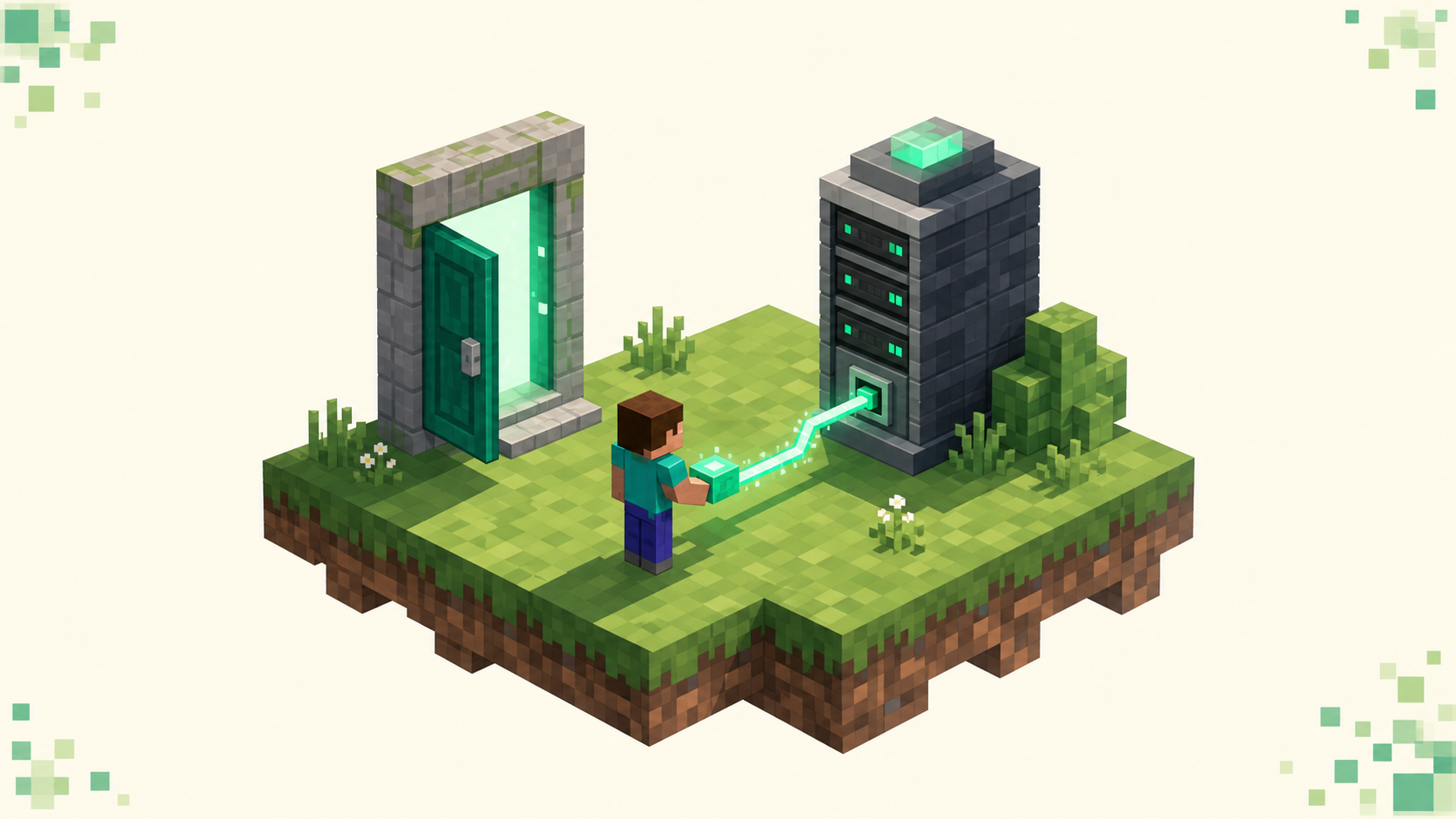
A server address is a hostname like play.example.net that points to the machine running the world you want to play on. You find that address, add it to your in-game list, and connect. Java and Bedrock both work that way; they just put the buttons in slightly different places, and Bedrock splits one field into two.
If you don't have a server in mind yet, browse our ranked Minecraft server list or jump to a category like Survival, Skyblock, or Factions to find one worth joining.
What a Minecraft server address looks like
Most addresses are just a hostname, but some add a port after a colon, like play.example.net:25565. When the server runs on the default port you can leave the port off and type only the hostname.
- Java Edition servers use port
25565by default, so on a default-port server you just type the hostname. - Bedrock Edition servers use port
19132by default. Bedrock asks for the address and port in separate fields, so it helps to have the port handy.
Every listing on bestminecraftservers.gg shows the exact address to copy, so you don't have to guess. Copy it precisely — a single wrong character will stop you connecting.
How to join a server on Java Edition
Java Edition is the original PC version, and it's the one most large community servers target. To add and join a server:
- Launch Minecraft: Java Edition and wait for the main menu.
- Click Multiplayer.
- Click Add Server.
- Give it any name you like, then paste the server address into the Server Address field. Include the port only if the listing specifies one.
- Click Done. The server appears in your list.
- Select it and click Join Server — or double-click it — to connect.
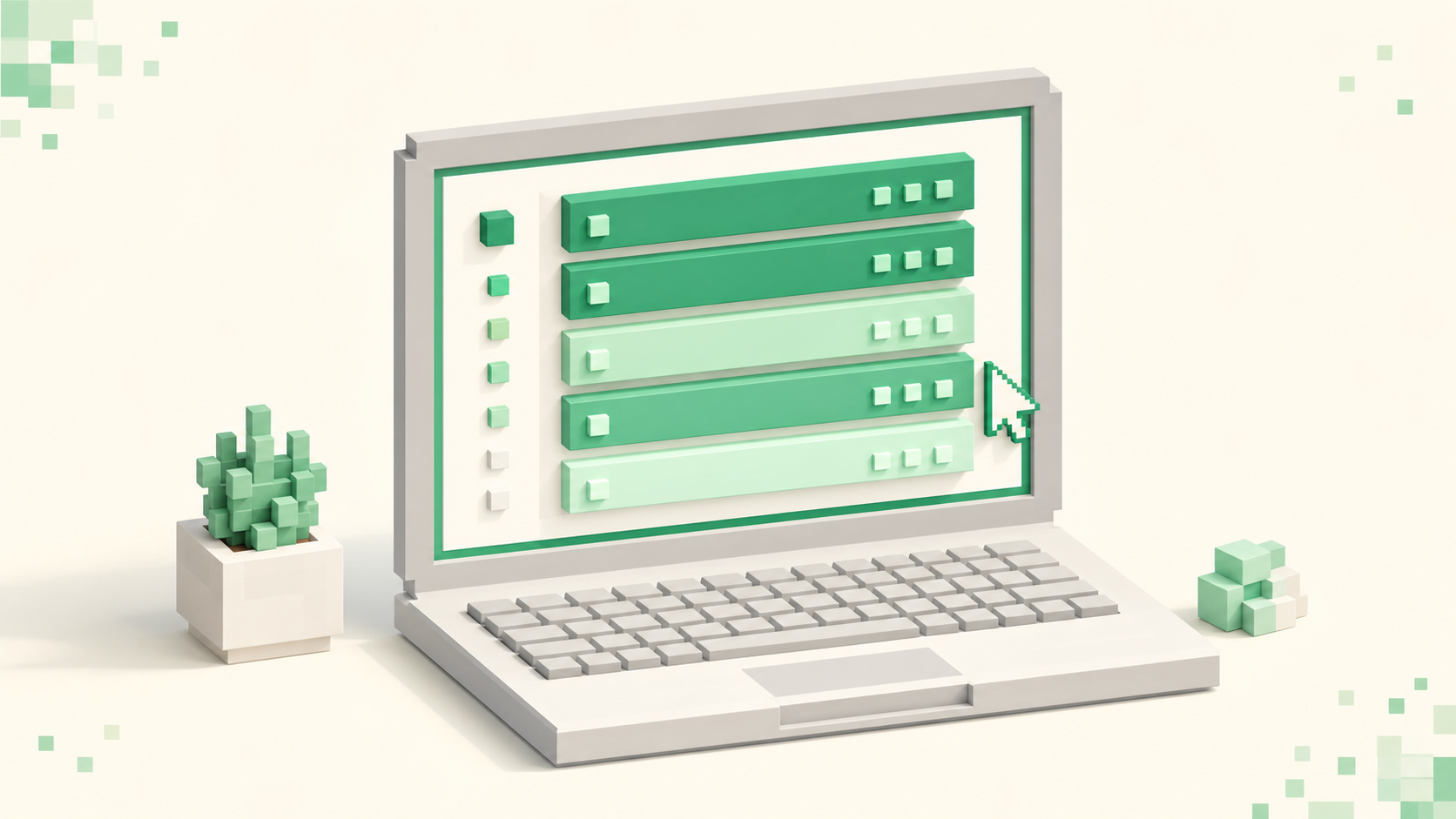
Once a server is saved, the multiplayer screen shows a live ping (the green signal bars) and the current player count, so you can see whether it's online before you join.
Joining a specific Java version
Big servers support a range of game versions but not all of them, so you may need to switch your client version in the Minecraft Launcher before connecting. Each listing notes the supported version — match it and the "incompatible version" error disappears.
How to join a server on Bedrock Edition
Bedrock Edition covers Windows, mobile, consoles, and the Pocket Edition lineage. The flow is almost the same as Java, just split across two fields:
- Open Minecraft and go to the Play menu, then the Servers tab.
- Scroll past the featured servers and tap Add Server.
- Enter a Server Name (anything you like), the Server Address, and the Port — usually
19132unless the listing says otherwise. - Save the server.
- Tap the saved server in your list to connect.
Some servers are Java-only or Bedrock-only, and a few support both through a proxy, so check the listing first to make sure you're pointing the right edition at the right address.
Why can't I connect? Common fixes
When a server won't load it's almost always one of the first three things below, so work down the list in order before you go reinstalling anything.
- Typo in the address. Re-copy the address straight from the server listing rather than typing it by hand.
- Version mismatch. "Outdated client" or "outdated server" means your game version doesn't match what the server supports. Switch versions in the launcher (Java) or update your app (Bedrock).
- Wrong edition. Java addresses won't work in Bedrock and vice versa.
- Server is offline or restarting. A grey or red ping in the multiplayer list means the server isn't reachable right now. Check the uptime shown on its listing and try again later.
- Network or firewall. If every server fails, restart your router, or try a different network to rule out a local block.
- You're banned or whitelisted out. Some servers require an application or whitelist. A "you are not white-listed" message means you need to join their community first.
Tip: A quick way to confirm a server is the problem and not you is to add a second, well-known server from our list. If that one connects, the issue is with the first address or version.
After you connect
Most servers drop you into a lobby or spawn area with signs, NPCs, or a menu explaining where to go. Read the rules board, pick a game mode if you're asked, and you're playing. If a server clicks with you, vote for it — votes are how servers climb our monthly rankings, and many reward you in-game for doing it. For base game mechanics, the Minecraft Wiki is a reliable reference.
FAQ
What is the default Minecraft server port?
Java Edition uses port 25565 by default and Bedrock Edition uses 19132. If a listing doesn't mention a port, the default is being used and you can leave the port field blank on Java.
Why can't I connect to a Minecraft server?
Run through the common fixes above, but the one people overlook most is the server simply being down — a grey or red ping in your list means it isn't reachable right now, so check the uptime on its listing before you assume something's wrong on your end.
What's the difference between joining a Java and a Bedrock server?
The steps are the same — add the address, then connect — but Bedrock asks for the address and port in separate fields, while Java accepts them as one. The two editions aren't cross-compatible unless a server specifically bridges them.
Do I need to download anything to join a server?
No. As long as you own Minecraft, you can connect to public servers directly from the in-game multiplayer menu. You only need to match the server's supported game version. Browse the full server list to find one to start with.
Is it safe to join public Minecraft servers?
Public servers listed here are community-run and generally safe. Never share your account password, and be cautious of off-site links asking you to log in.