Why Is My Skin Not Showing on a Server? (Steve Fix)
Minecraft skin not showing on server usually means an offline-mode (cracked) server that never asks Mojang for it, or a stale cache a restart fixes.
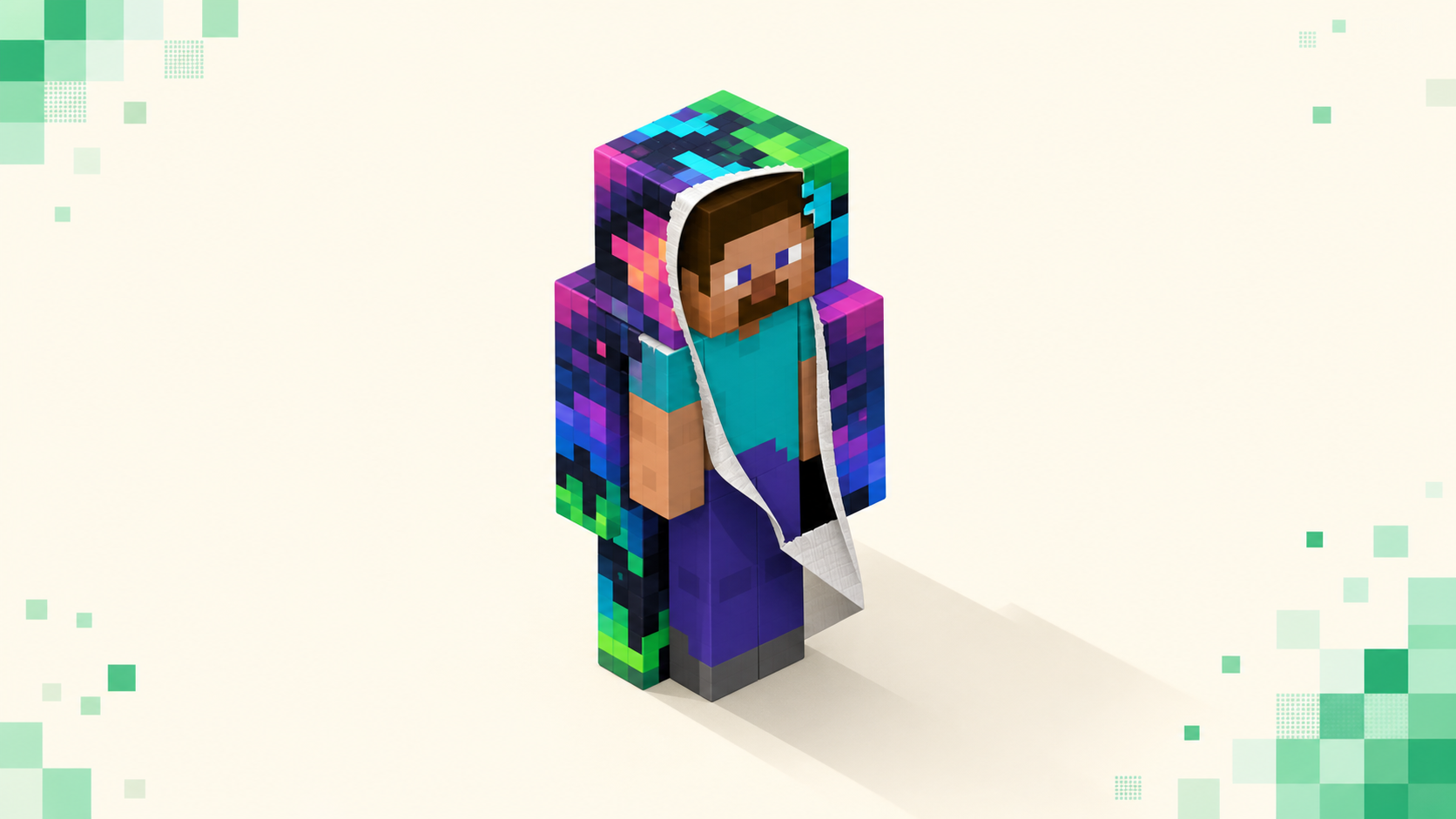
Your skin fails to show on a server for one of two reasons, and only one of them is on your end. Either the server runs in offline mode (a "cracked" server), so it never asks Mojang for your account's skin and drops everyone to the default Steve or Alex — or your skin is stuck in a stale cache and a full client restart brings it back. Re-uploading your skin does nothing for the first case, which is the one most people keep fighting.
First, the two-second test: this server or everywhere?
Join a large, well-known server you're sure is legitimate and check whether your skin renders there. If it shows up fine on that server but you're plain Steve on the problem server, the problem server is running in offline mode and there is nothing you can fix from your side. If you're Steve on every server, including ones you know work for other people, it's a cache or account issue, and the fixes further down apply.
The frustrating part is that there's no error for this. No popup, no red text, no "Skin failed to load" line in the corner. You just spawn in as the default character, which is exactly why people re-upload their skin five times and change nothing. The game never tells you which of the two problems you have, so the test above is the fastest way to split them apart.
If you don't have a known-good server handy to test against, grab one off the live /servers rankings and add it — the top entries are the ones with the most votes this month, so they're active and almost always real online-mode servers. If you're not sure how to add one, how to join a Minecraft server walks through the Add Server screen on both editions.
Offline-mode ("cracked") servers can't load your skin
The core reason your skin vanishes is a single line in the server's server.properties file: online-mode. When it's set to online-mode=true, the server authenticates every player against Mojang's session servers at sessionserver.mojang.com. That handshake is how the server learns your real account UUID, and with that UUID it pulls your skin texture from textures.minecraft.net. Skin shows up, everything works.
Set online-mode=false and the server skips all of that. It never talks to Mojang, so it has no idea who you actually are. It generates a UUID from a hash of your username instead of your real one, and hands you the default skin — Steve or Alex, depending on whether that generated UUID comes out even or odd. These are the "cracked" servers, the ones that let people without a paid account log in. That's the whole reason they run offline mode in the first place. If you're curious where the account line actually falls, do you need to buy Minecraft to play on servers covers it.
Here's the blunt version: your skin is tied to your Mojang account, and an offline-mode server has no link to that account at all. It never asked Mojang anything about you. So re-uploading your skin, changing it, clearing your launcher — none of that reaches the server, because the server was never going to look. The only fix lives on the server side, and it's the admin's call (see the SkinsRestorer note in the FAQ). Worth keeping in mind that cracked servers skip authentication for everyone, so anyone can log in under any name; is it safe to join public Minecraft servers is a fair thing to read before you settle into one.
The skin-cache glitch (you're Steve on servers that should work)
If you've confirmed the server is online mode and you're still Steve, you've got a stale cache — either your own client holding onto old data, or Mojang's session servers lagging behind a recent change. Work through these in order:
- Fully quit the game and the launcher, then reopen both. Not just leave-and-rejoin the server — actually close the Minecraft window and the launcher and start fresh. This is the one that works most of the time, and it's the step people skip.
- Re-log your Microsoft account in the launcher. Sign out, sign back in. This forces a clean token and clears a stuck profile.
- If you just changed your skin, wait. A skin change can take up to roughly an hour to propagate to Mojang's session servers. Rejoining every two minutes won't speed it up.
- Re-apply the skin on your minecraft.net profile page, then quit and rejoin. Sometimes the profile just needs a fresh push.
If you're also hitting session weirdness like an "Invalid session" kick around the same time, it's the same underlying staleness — fix invalid session Minecraft server covers the re-log in more detail.
Proxy networks: skins vanish when forwarding is misconfigured (report it, don't fix it)
On a big multi-server network running Velocity or BungeeCord, the backend servers deliberately run online-mode=false — the proxy sits out front, handles the Mojang authentication once, and forwards your real profile (UUID and skin included) to whichever backend server you land on. That's normal and correct. But if that player-info forwarding breaks, the backends fall back to true offline behavior and skins disappear across the entire network.
The two settings behind it: on BungeeCord, the backend Spigot servers need bungeecord: true under the settings block in spigot.yml. On Velocity, it's modern forwarding with a forwarding.secret value that matches between the proxy and every backend. If those don't line up, everybody's Steve.
The tell here is scope: if every single player on a whole network is Steve — not just you — that's the admin's forwarding config, not anything on your machine. Nothing you restart or re-upload will touch it. Report it to the staff and move on.
Bedrock players via Geyser often show a default skin
If you're a Bedrock player connecting to a Java server through Geyser, your skin is fetched and translated by Floodgate, and it sometimes falls back to a default or renders a little blocky. Bedrock skins don't map cleanly onto the Java player model — the geometry and the way custom Bedrock skins are stored don't line up one-to-one — so the bridge does its best and occasionally lands on a plain skin. That's not a bug you fix; it's a limitation of translating between two skin systems.
If you want the background on how that bridge works, what is Geyser and Floodgate explains the two plugins, and how to join a Java server on Bedrock with Geyser covers the connection side, including the 19132-versus-25565 port difference that trips people up.
So what does re-uploading actually fix?
Re-uploading helps in exactly one situation: the skin genuinely never applied to your account, and you can confirm that because you're Steve in singleplayer too. In that case the upload didn't take, and pushing it again on your profile page fixes it for real.
Every other case, re-uploading does nothing useful. On an offline-mode server it never reaches anything, because the server doesn't ask Mojang about you. On a cache glitch a plain client restart beats it almost every time. The decision tree is short: skin fine on a known-good server but not this one → offline mode, unfixable by you; Steve everywhere including singleplayer → re-upload; Steve on servers that should work but fine in singleplayer → restart the client.
FAQ
My skin shows in singleplayer but I'm Steve on the server — what's different?
Singleplayer renders your skin straight from your local launcher profile — it doesn't need the internet, so it always looks right. A server can't do that; it has to fetch your texture from Mojang using your authenticated UUID. So a skin that's fine solo but missing on a server points at the server, not your account — almost always offline mode, occasionally a forwarding break on a network.
I see every other player as Steve too, not just myself.
Where it happens tells you which problem it is. If everyone's Steve on one particular network but skins look normal on other servers, that's the network's player-info forwarding breaking — the Velocity or BungeeCord setup from earlier — and it's a server-side fault you can only report, not fix. But if everyone's Steve on every server you join, the trouble is on your end: your client can't reach Mojang's texture host at textures.minecraft.net to pull anyone's skin, usually a DNS block, a firewall rule, or a VPN sitting in the way. Restart the client and drop the VPN, then check again.
How long after changing my skin before it shows on servers?
Up to about an hour in the worst case. Mojang's session servers cache the old texture for a while, and other players' clients also cache whatever they last saw of you, so the change has to clear on both ends. A full restart of the client — yours and theirs — clears it faster than just waiting.
Can an offline-mode server show skins at all?
Yes, through an admin-side plugin like SkinsRestorer, which stores skins and reapplies them independent of Mojang authentication — it can even set a skin by username with a command like /skin set <name>. So if a cracked server does show skins, that plugin is what's doing the work. It's entirely on the server side, though, so there's nothing you install or configure as a player to make it happen.