How to Join a Friend's Minecraft Server
The address you type depends on where you are relative to the host — LAN IP, public IP and port, a Realms invite, or a Tailscale tunnel. Here's each one.
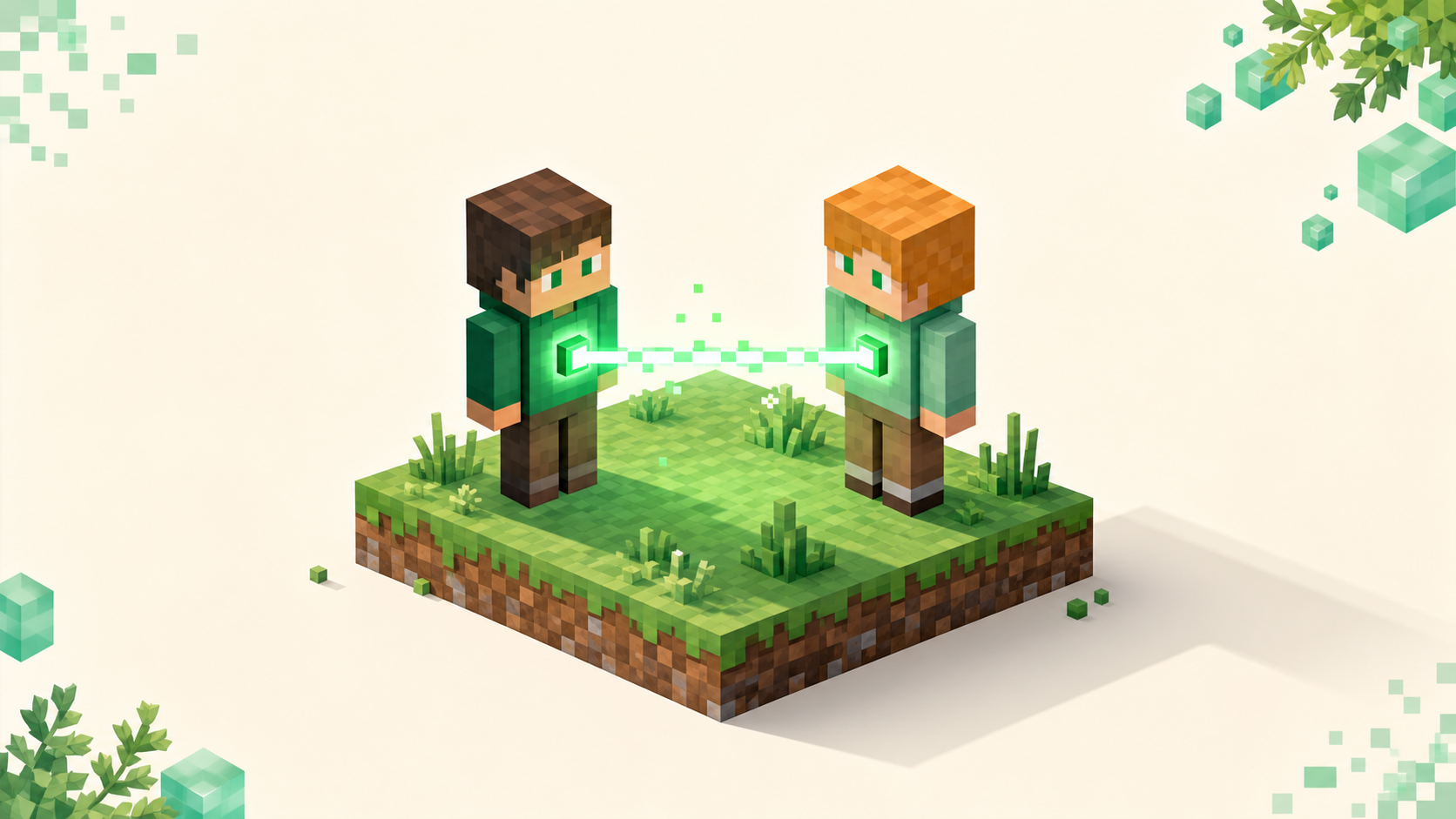
The address you type to reach a friend's server depends entirely on where you are relative to the machine hosting it, and that single fact explains most failed joins. If you're on the same Wi-Fi, you want their computer's local IP. Across town, it's their public IP plus the port they forwarded. On a Realm there's no address at all — you accept an invite. Behind a tunnel like Tailscale, it's a private address that skips port forwarding. The one thing that never works, no matter the setup, is the host telling you to use localhost or 127.0.0.1. Those are loopback addresses that always mean "this same computer," so on your machine they point the game right back at your own PC. Once you know which scenario you're in, the actual join flow is the same handful of clicks, and finding the IP and port is the part worth getting exactly right.
Same network: use the host's local IP
If both of you are on the same router — same house, same Wi-Fi — you need the host computer's local IPv4. It looks like 192.168.x.x or sometimes 10.x.x.x. The host finds it by running ipconfig on Windows and reading the line labeled IPv4 Address, or ip addr (or ifconfig) on macOS and Linux and reading the inet value.
There are two ways the host might be sharing. If they're just playing a single-player world and opened it up, they go to the pause menu, pick Open to LAN, and hit Start LAN World. Chat then prints something like Local game hosted on port 61234. That port is random and changes every single session — it is not 25565 — so you have to use the exact number it shows. On Java you'd type 192.168.1.20:61234 into Direct Connect. Players on the same network often see the world pop into the Multiplayer list automatically, but some routers block that discovery, so typing the address by hand is the reliable fallback.
If instead the host runs a proper dedicated server, that one uses the default Java port 25565 (or Bedrock's 19132), so you'd connect to 192.168.1.20 and can leave the port off if it's the default.
Different network: public IP plus the forwarded port
When you're not on the same router, the host's 192.168.x.x address is useless to you — it only exists inside their house. You need their public IP, which they find by searching "what is my IP", plus the port they forwarded on their router for the server. Those are two separate things, and missing either one is where off-network joins fall apart.
Port forwarding is a host-side job. Their router has to be told to send incoming traffic on the server port through to the machine running the server. If they haven't done that, your client will sit there and time out no matter how perfectly you typed the address — there's nothing on the other end listening to the outside world. So if a public IP won't connect, the honest first question is whether they forwarded the port and actually started the server — not anything you can fix from your side.
One caution worth passing along: a raw public IP exposes the host's home connection, which is why a lot of people prefer Realms or a tunnel instead. And some connections — anything behind CGNAT, common on mobile and a few ISPs — can't be port-forwarded at all, so if that's the host's situation a public IP will never work and they'll need an option below. For a server that does have a real address, a custom domain with an SRV record lets the host hand you something memorable instead of a string of digits.
Realms: there's no address to type
Realms throws out the whole IP question. The owner invites you directly: they open Configure Realms, go to the Players tab, hit the +, and add your username. On your end you open Minecraft, go to Minecraft Realms, and you'll see a New Invitations! prompt. Accept it, pick the Realm, and press Play.
Only the owner needs an active Realms subscription — invited friends don't need one of their own. The one requirement that still bites people is edition and version: a Bedrock Realm only takes Bedrock players, a Java Realm only takes Java players, and you both need a compatible game version. There's no address to fat-finger, which is exactly why Realms is the easiest path for console players who can't type external IPs anyway.
Tunnels like Tailscale: a private address, no forwarding
A tunnel sidesteps port forwarding and never exposes the host's public IP. With Tailscale, the host installs it on the server machine and invites you to the same tailnet; you install Tailscale too and accept. After that, the host's machine has a private 100.x.y.z address (or a MagicDNS hostname like gaming-rig) that works as if you were on their LAN. You connect to that address on the normal game port — 25565 for Java, 19132 for Bedrock — with no router changes on either end.
This is the option I'd point most people to when Realms isn't a fit, and it's the same idea behind running a server without port forwarding. The host doesn't have to touch their router or publish anything about their home connection, and CGNAT stops being a problem. The trade is that both of you run a small piece of software and you have to be on the same tailnet — but once you are, joining feels the same as being on their LAN. Other tunnel tools like playit.gg do the same job by handing the host a public address that points through the tunnel.
Typing it in: Java and Bedrock
On Java, open Multiplayer. Add Server saves it with a Server Name and Server Address; Direct Connect is a one-off with a single Server Address field. The format is IP:port, and you can drop the port if the server's on the default 25565.
On Bedrock, go to Play, the Servers tab, scroll past Featured Servers, and pick Add Server. That opens Add External Server with Server Name, Server Address, and Port fields. Bedrock's default is 19132, and the detail that trips people up is that Bedrock runs over UDP — if the host forwarded only TCP, you still can't get in.
Still won't connect? Work through this
Run these in order; most failures are one of the first three.
- Wrong scenario. Same network needs the
192.168.x.xLAN IP; different network needs the public IP plus forwarded port. Mixing them up is the top cause. Connection refused(io.netty.channel.AbstractChannel$AnnotatedConnectException: Connection refused) means nothing is listening — server's off or you've got the wrong port.Connection timed outmeans the host is unreachable: not port-forwarded, a firewall is blocking, or the public IP is wrong. All host-side.Unknown host/java.net.UnknownHostExceptionis a typo or an address that won't resolve. Re-copy it character for character.- Version mismatch. "Outdated server!" right after you updated means the server's behind your client; "Outdated client!" means the server is newer. Both ends must share a protocol — 26.2 "Chaos Cubed" is protocol 776, 26.1 is 775 — and only the owner can add a multi-version bridge.
FAQ
My friend gave me 127.0.0.1 and it shows their server name but won't load — why?
The name you see is just the label you typed when you saved the server; it shows up whether or not anything answers. 127.0.0.1 and localhost are loopback addresses that always point at the machine the game is running on, so your client looks for a server on your PC and finds nothing. They only work for the host testing on their own computer. Ask for their 192.168.x.x LAN IP if you're in the same house, or their public IP and forwarded port if you're not.
The host opened to LAN but the port keeps changing — is that normal?
Yes. Open to LAN grabs a random ephemeral port each time the world is opened, which is why the chat line reads something like Local game hosted on port 61234 with a different number after every reopen. It holds steady while that session runs and only rolls over when the host closes and reopens the world. There's no way to pin it to 25565 — only a true dedicated server keeps a fixed default port. Grab the current number from the host each session, or ask them to run a dedicated server if you join often.
Bedrock keeps saying "Unable to connect to world" even with the right IP — what's left?
If the address and 19132 are correct, the usual culprit is the protocol: Bedrock is UDP, so a host who forwarded only TCP leaves you stranded. The host's OS firewall can also block the inbound port — that needs an inbound rule for UDP 19132 on their end. If they run Geyser, they can self-test reachability with geyser connectiontest <ip> <port>. Every one of these is a host-side fix; there's nothing to change in your client.
We're on totally different networks and nothing works — what's the simplest fix?
Skip public IPs and port forwarding. The difference between the two fallbacks is where the world lives: a Realm is a separate world Mojang hosts, so the host's own machine never enters the picture, while Tailscale puts you onto that machine as if you shared a LAN. Pick a Realm if a fresh shared world is fine; pick Tailscale if you want their existing server and save, connecting to their 100.x.y.z address on the normal game port. Both keep the host's connection private, and both work behind CGNAT, which kills port forwarding outright.