How to Run a Minecraft Server Without Port Forwarding
Let internet friends onto a self-hosted Minecraft server with no port forwarding, using tunnels like playit.gg, mesh VPNs like Tailscale, or Realms.
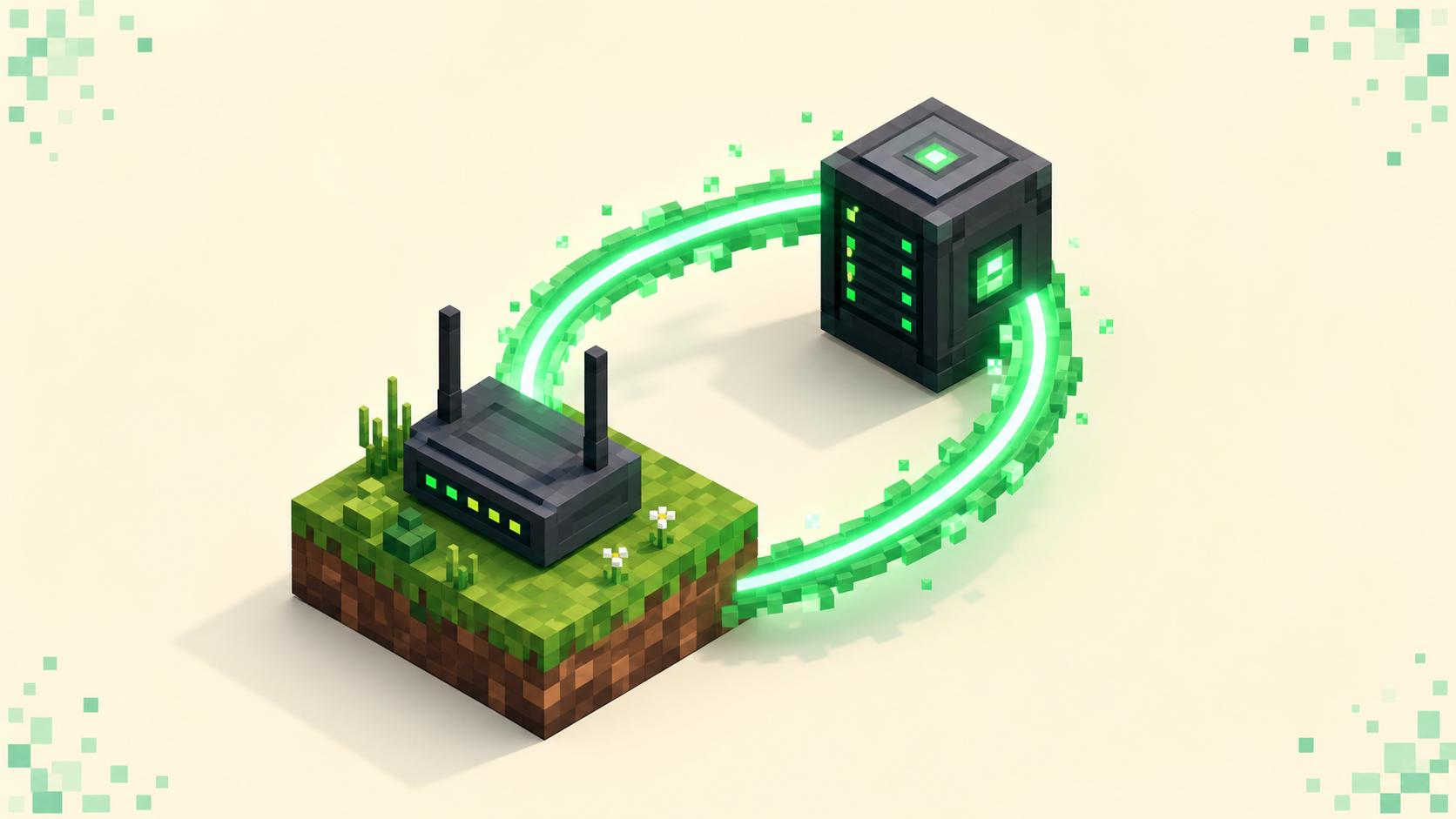
You can let internet friends onto a server running on your own PC without ever touching the router, and there are three honest ways to do it: a tunnel that hands you a public address (playit.gg, ngrok), a mesh VPN that puts everyone on one private network (Tailscale, Hamachi), or Mojang's own Realms, which hosts the world for you. Each trades latency, who can join, and setup effort differently. Port forwarding is the usual route and it's covered separately in how to port forward a Minecraft server, but if you don't have router admin access — or you're behind carrier-grade NAT, where forwarding simply isn't possible — these get friends connected anyway.
One thing none of them change: your server still listens on TCP 25565 for Java or UDP 19132 for Bedrock, and every connecting client must match your server's protocol. A 26.2 client (protocol 776) cannot join a 26.1 server (protocol 775) no matter what tunnel sits in between. If anyone gets kicked with "Outdated client!" or "Outdated server!", that's a version mismatch, not a networking one — don't blame the tunnel.
Why port forwarding is normally needed
A server running on your machine is only reachable by other devices on the same local network. The internet can't see it, because your router doesn't know to pass outside traffic on port 25565 through to your PC. Port forwarding is the manual fix: you log into the router and map an external port to your machine's internal address. It works, but it needs admin access to the router, it exposes a port to the whole internet, and it's flat-out impossible when your ISP puts you behind carrier-grade NAT and you don't get a real public IP. The methods below sidestep the router entirely — they reach out from your machine instead of waiting for traffic to come in.
Tunnels: hand friends a public address
A tunnel runs a small agent on your PC that connects out to a relay service, and the service gives you a public address that forwards traffic back down to your local server. Friends connect to that address like any other server.
playit.gg
The free tier covers small home games, and it handles Bedrock, which is why I reach for it first.
- Set up the server itself if you haven't — a Paper server is the usual starting point — and confirm it runs and you can join locally.
- Download and run the playit agent program on the host. The console prints a link; open it, log in, and claim the agent.
- Create a tunnel and point it at the local target
127.0.0.1with port25565for Java (or19132for Bedrock). - playit assigns a public address like
visiting-phone.gl.at.ply.gg:6695(sometimes a plainnumbers.ip.ply.gg:port). Give friends that whole string to drop into Multiplayer -> Add Server.
The place people trip on Bedrock: the playit plugin you'd install into the server doesn't do UDP, so it won't carry a Geyser Bedrock tunnel. Use the standalone agent program for that, set Geyser's use-haproxy-protocol: true, and set broadcast-port to the tunnel's port.
ngrok
ngrok works the same way but is TCP-only, so it's Java-only without extra plumbing. Install the agent, then run:
ngrok tcp 25565
(On Windows that's ngrok.exe tcp 25565.) It prints a Forwarding line like tcp://1.tcp.ngrok.io:12345. Hand friends the part without the prefix — 1.tcp.ngrok.io:12345. Two free-tier facts will bite you if you don't know them: ngrok requires a valid card on file before TCP endpoints work at all (it isn't charged), and the address changes every single time you restart the agent unless you pay for a reserved one. There's also a monthly bandwidth cap, after which players can't connect until it resets. Pricing and limits shift, so check ngrok's current page before you lean on it.
The shared catch with any tunnel: the address is public, so anyone who has it can attempt to join, and traffic relays through the provider's servers, which adds a little latency. Turn on the whitelist and keep online-mode on (more on both below).
Mesh VPN: put friends on a private network
A mesh VPN flips the model — instead of a public address, everyone installs a client and joins one private virtual network, then connects by a private IP that only members can reach. It's more setup per friend, but it's private and usually lower-latency than a relay.
Tailscale
Tailscale is a zero-config mesh built on WireGuard, free for personal use, and it does NAT traversal automatically. Because WireGuard sets up direct peer-to-peer connections where it can, the hop through a relay that tunnels force on you mostly disappears.
- The host and every friend install Tailscale and sign in. The host shares their machine (the node) with each friend so everyone lands on the same "tailnet."
- On a dedicated server, set
server-ip=0.0.0.0inserver.propertiesso it binds every interface, including the Tailscale one. Leaveserver-port=25565. - Java friends use Multiplayer -> Direct Connect with the host's Tailscale address, which is a
100.x.y.zIP, plus the port —100.x.y.z:25565. Bedrock friends use Add Server with the same IP.
If typing a 100.x.y.z IP is awkward, turn on MagicDNS and hand out the machine's hostname instead — it resolves to the same node. The Direct Connect and 0.0.0.0 details are standard Tailscale usage; their docs walk a Bedrock systemd setup in full if you're on Linux.
Hamachi and friends
Hamachi (now under vpn.net) is the old standby. The host creates a network with an ID and password, everyone installs Hamachi and joins it, and friends connect using the host's Hamachi IPv4 — a 25.x.x.x address — with the server port. It still works, but the free tier has historically capped a network at 5 devices, and it carries a long history of Minecraft login and connectivity quirks. Treat that device number as historical and verify it, and honestly, ZeroTier or Radmin VPN are the cleaner free alternatives most people land on now.
The VPN trade-off in one line: only people you invite onto the network can connect, which is more secure, but every friend installs a client and joins before they can play.
LAN and Realms: the no-extra-software cases
Two options need nothing installed on anyone's machine, and they sit at opposite ends of effort.
Open to LAN is the simplest, with one big limit. From a single-player world, hit Escape, choose Open to LAN, then Start LAN World. Chat confirms with something like Local game hosted on port 2121 (the number varies — you might see Local game hosted on port 50000). On its own this reaches only devices on the same router or hotspot, not internet friends. It becomes a remote option only when you pair it with a VPN like Tailscale, because then everyone shares one virtual LAN and the LAN world shows up for them. You can also script the port with /publish [<allowCommands>] [<gamemode>] [<port>] if you want to pin it.
Realms is the opposite: Mojang hosts the world, so your PC runs nothing at all. The owner invites players through their Microsoft accounts, and invitees don't need their own subscription — up to 10 can be online at once on Java. It's the easiest way to play with internet friends, period. The cost is flexibility: it's a paid monthly subscription and you can't install arbitrary server software or most plugins, so anything custom is off the table. Reconfirm the current player cap and details on minecraft.net, since those numbers move.
FAQ
My friend connects but immediately gets kicked — is the tunnel broken?
Probably not. Read the kick string. "Outdated client!" or "Outdated server!" is a protocol mismatch — one side is on 26.2 (protocol 776) and the other on 26.1 (protocol 775), and no tunnel or VPN bridges that gap. Get everyone onto the same version and it clears. If instead they hit a connection timeout, that's the actual networking layer: the agent or VPN client probably isn't running on the host.
Do I still need a whitelist if I'm using a private VPN?
On a VPN, less urgently — only people on your tailnet or Hamachi network can reach the server at all. With a public tunnel, yes, absolutely. The something.at.ply.gg or 1.tcp.ngrok.io address is reachable by anyone who learns it, so set white-list=true in server.properties, add players with /whitelist add <name>, and keep online-mode=true so usernames are verified against Mojang. That pairing is your real door lock.
Does the host's PC have to stay on the whole time?
For everything except Realms, yes. The server process and the tunnel agent or VPN client all run on your machine, so if it sleeps or you close the agent, the address goes dead and everyone drops. Realms is the only option here that's genuinely host-machine-free, because Mojang's hardware keeps the world up. If you want friends to play while your PC is off, that's the trade Realms exists for.
Which method has the lowest latency?
A direct Tailscale connection, in most cases. WireGuard establishes a peer-to-peer link, so traffic often goes more or less straight between you and your friend rather than detouring through a company's relay the way a tunnel does. Public tunnels always add the relay hop. If a few friends are comparing ping while sizing up where to play long-term, the live survival and SMP rankings are a decent reference point, and how to join a friend's Minecraft server covers the connect screen step by step.