How to Fix "Outdated Server!" and "Outdated Client!" in Minecraft
Both "Outdated client!" and "outdated server!" mean a protocol mismatch — the wording tells you which side is behind. Match your install to the server's drop.
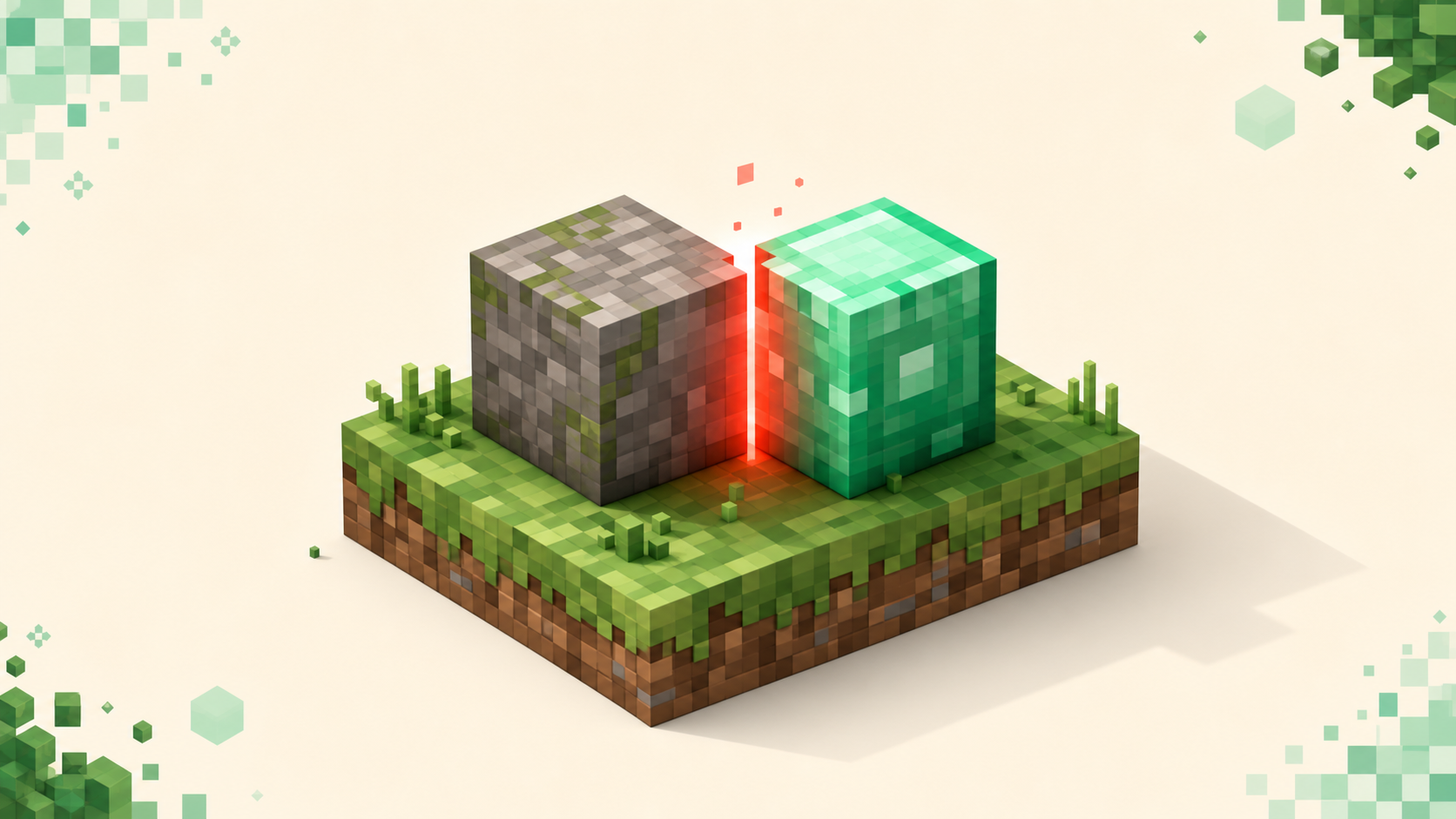
Both of those red messages mean the same thing — your game and the server are speaking different protocol versions — and the only difference is which side is behind. Outdated client! Please use ... means your installation is older than the server, so you need to come up to its drop. Outdated server! I'm still on ... means your installation is newer than the server, so the server is the one lagging, and you most often see it right after Minecraft auto-updates you to a drop the server hasn't caught up to yet. Either way, the fix on your end is the same: make your own installation match the drop the listing names, and the 26.3 server list and its 26.2 and 26.1 counterparts are filtered to exactly that.
Here's the rule underneath it. A drop speaks one network protocol number, and the client and server have to share the exact same number to connect — 26.3 "Wilderness Bound" speaks protocol 777, 26.2 "Chaos Cubed" speaks 776, 26.1 speaks 775, and no two of them can talk to each other. A newer client is not backward-compatible with an older server, which is why simply being on the latest version doesn't get you in everywhere. If you want the protocol-number background, what protocol version 26.2 uses lays out the mapping, and this post is the companion to why you can't join a server after updating to 26.2.
What the two messages actually say
These two are the messages a server kicks you with when you try to join, and they're the defaults on Paper and Spigot, which is what most public servers run. Outdated client! Please use ... puts the server ahead of you, and the version at the end is the one it wants you on. Outdated server! I'm still on ... puts you ahead of the server, naming the older drop it's stuck on. Owners can reword both in spigot.yml, so a few servers will say something else. Your Multiplayer list usually warns you before you click Join: on the 26.x clients a mismatched server shows Incompatible version! next to the version it reports. A vanilla or Fabric server words the kick differently, as Incompatible client! Please use ... whichever side is behind, so on those the version at the end is the only clue to direction — same underlying mismatch either way.
The takeaway is that you don't have to guess. The message names a direction: "client" outdated means update your side up, and "server" outdated means the server has to come up or you drop your install down to meet it.
Why so many servers show "Outdated server!"
This one trips people up right after an update, and it isn't a bug. Server software and add-ons update on different schedules. As of September 2026, Paper's stable builds are for 26.2 and its 26.3 builds are still experimental, so plenty of plugin servers sit on 26.2, or even 26.1 while their plugins catch up. The moment Minecraft auto-updates you to 26.3, a 26.2 server can report Outdated server! to you — not because anything broke, but because you moved forward and it hasn't. Modded servers can lag too: a loader may support 26.3 while individual mods still need updates.
Fix it as a Java player
This is the common case and it takes about a minute. You're not reinstalling anything — Minecraft keeps every version it has downloaded, so you're just pointing the launcher at the right one.
- Read the drop the server runs. Server cards on the site show it, and you can browse by drop on the 26.1 server list or the 26.2 equivalent (note the dotted form —
26-2with a hyphen 404s). That number is what you're matching. - Open the Minecraft Launcher and click the Installations tab.
- Click New installation (or edit one you already have).
- Open the Version dropdown and pick the exact drop the server runs — 26.3, 26.2 or 26.1, not "close enough."
- Click Create, then go back and Play that installation.
- Reconnect to the server.
Every player joining has to do this individually. A mismatched player can't get in on someone else's coattails, and there's no setting on the server side that excuses a wrong client.
Keeping both drops on hand
Once you've made a 26.2 install and a 26.1 install, swapping between them is just picking from the dropdown next to the Play button — profiles stay saved. If you bounce between a 26.2 survival world and a 26.1 factions server, keep both installations and switch per server instead of recreating one each time. That's the whole reason the launcher separates installations from the game files.
Fix it as a Bedrock player
Bedrock has no per-version launcher, so the fix is different. The app is a single store install that auto-updates, so a mismatch almost always means your store build is behind the server you're trying to reach. You can't pick a version — you update the app through whichever store you installed it from:
- Microsoft Store (Windows): open the Store, go to Library → Get updates.
- Xbox app (Windows): check My Library for the update.
- Google Play (Android) or the App Store (iOS): update Minecraft from your installed apps.
Store updates can lag a day or two behind a drop's release, so if a server is on the newest version and your app insists it's current, you may just have to wait for the update to land in your store. The default Bedrock port, for reference, is 19132 (UDP), versus Java's 25565.
What you can't fix from the player side
There's a tempting idea that you can install something to bridge the gap yourself. You can't, and it's worth being clear about why. ViaVersion lets newer clients connect to older servers, and ViaBackwards (which needs ViaVersion) lets older clients connect to newer ones — but both are server-side plugins or proxies the owner runs on Paper, Spigot, Velocity, or BungeeCord. They live on the server, not your machine. A visiting player has no way to add them to a server they don't control, so if you hit a mismatch as a guest, matching your own version is the only lever you have.
If you run the server, that's a different conversation — bridging is your call, and it's how some servers accept a range of client versions at once. But from the outside, "just install ViaVersion" isn't a fix anyone can hand you.
FAQ
The server lists 26.2 but I'm on 26.2 and still get "Outdated server!" — what gives?
Check the exact drop, including any hotfix, against what the listing shows, because protocol matching is strict and "26.2-ish" isn't a thing — the number is 776 or it isn't. If the listing genuinely says 26.2 and your launcher's Version dropdown also reads 26.2, the most likely culprit is that the server hasn't finished updating yet, or it briefly rolled back to 26.1 during a restart and the card is stale. Try again a few minutes later, and confirm the server's current drop on the live listing rather than trusting a cached hover.
Will deleting and reinstalling Minecraft fix a version mismatch?
No, and it'll cost you time. A mismatch is purely about which protocol number your installation speaks, not a corrupted install — the launcher already has the versions it needs. Reinstalling at best lands you back on whatever version auto-updates pick, which is often the newer one that caused Outdated server! in the first place. Make a new installation, choose the server's exact drop from the Version dropdown, and play that. That's faster than a reinstall and it actually targets the problem.
Why can't I just stay on the newest version and join everything?
The server checks for an exact protocol match, not "newer or equal," so a 26.3 client (777) is simply a different number from a 26.2 server (776) and gets refused even though it's ahead. Plenty of plugin servers still sit on 26.2 while their add-ons catch up, so keeping a 26.2 installation next to your 26.3 one and picking the right one per server is how you cover both.
My friend joined the server fine but I can't — same version, different result?
Have them open their launcher and read the actual installation they hit Play on, not the version they assume they're running. Auto-update quietly creates a "latest release" profile, so two people who both think they're "on Minecraft" can be one drop apart without noticing. Match the installation that worked for them — exact drop in the Version dropdown — and you'll get the same result. If they're on Bedrock and you're on Java, that's a separate edition gap entirely, and you'd want a crossplay server that bridges both.