Why You Can't Join a Server After Updating to 26.2
Updated to Minecraft 26.2 and now a server won't let you in? Here's why the "Outdated client/server" handshake fails and how to match the right version.
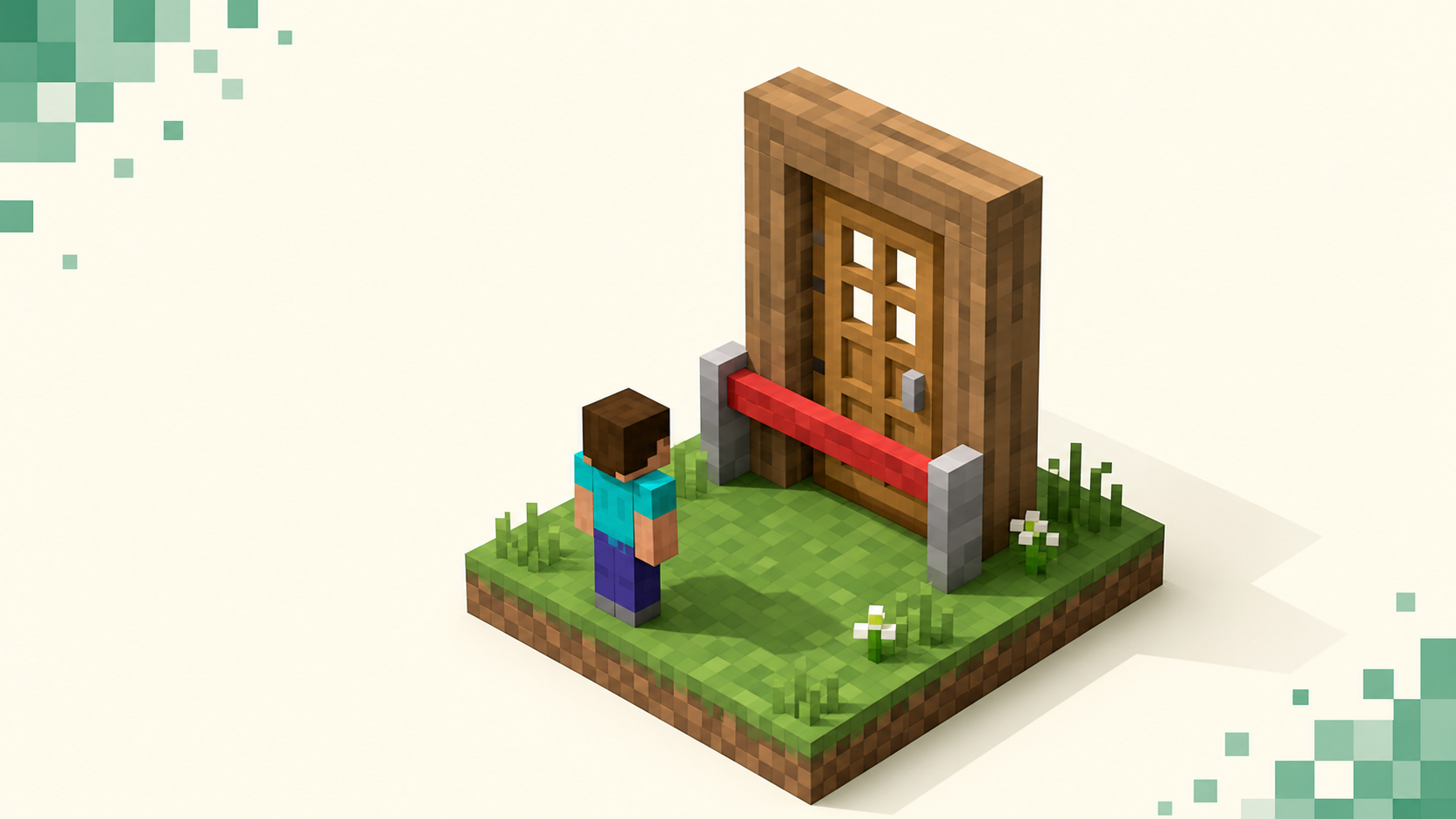
You updated to 26.2, and a server that worked fine yesterday now bounces you with an error the moment you try to connect. Nothing's broken — this is what happens after a major drop, and it's a quick fix. The reason is simple: your game and the server have to be running the same version to connect, and 26.2 changed the protocol number that 26.1 used. The fix is to get both sides onto the same version, which usually means rolling your client back to 26.1 for now. The how to join a Minecraft server guide is the companion to this one, and if you'd rather just play somewhere already updated, the 26.2 server list is filtered for you. One thing has changed since this was written: the launcher's "Latest release" now installs 26.3 "Wilderness Bound" (out September 15, 2026, protocol 777), so if you updated recently you're probably on 26.3, and the same fix applies with 26.2 as the drop behind you.
What the error actually means
There are two messages, and they point in opposite directions. "Outdated client!" means your version is older than the server expects — you're behind. "Outdated server!" means your version is newer than what the server runs — you're ahead. That second one is what you'll usually see right after updating to 26.2, because now your game is the newer side.
This happens because a client and a server only connect when their network protocol matches. 26.1 is protocol 775 and 26.2 is protocol 776. Those numbers are different, so a 26.2 client can't join a 26.1 server, and a 26.1 client can't join a 26.2 server, so the server turns you away before you ever load in.
So when you update to 26.2 first and the server is still on 26.1, you're now the newer side, which is why you get "Outdated server!" even though everything on your end is current. The fix isn't to update further. It's to get the two sides onto the same version. This is also separate from a typo, the wrong edition, or the server just being offline — those have their own symptoms, and how to join a server covers them.
First, confirm which version each side is on
Start by checking your own client. The version shows in the Minecraft Launcher's installation dropdown, and again on the bottom-left of the in-game title screen. If it says 26.2, you're on protocol 776.
Then check the server. A good listing states the version it supports, and on this site every listing shows what it runs — you can browse everything currently on 26.3, 26.2 or 26.1. One thing to watch when you type those paths: the version is dotted, so 26.2, not 26-2 (the hyphen form won't load).
You can also read the Multiplayer screen itself. A server you can't join on version grounds shows a red 'X' or an exclamation on its ping bars, and hovering gives you the outdated message — that tells you it's a version gap rather than a dead server. Once you know both numbers, the direction is obvious: if the server is on 26.1 and you're on 26.2, you'll roll your client back to 26.1 to play there now. If the server is already on 26.2 and you're somehow behind, you just finish updating.
Fix 1: Match the server by switching your client version
This is the cleanest fix and the one most people need — point your client at the same version the server runs, using the official Minecraft Launcher. No third-party tools.
On Java, open the Launcher and go to the Installations tab. Click New installation, pick the version you want from the dropdown (26.1 to join a 26.1 server, 26.2 for a 26.2 one), give it a name, and click Create. Then launch that installation and connect. There's also a faster route: the version dropdown sits right next to the Play button, so you can swap the active installation there and press Play to download and launch it.
The nice part is you can keep both side by side — one pinned to 26.2, one to 26.1 — and hop to whichever a given server needs without setting anything up again.
Bedrock works differently. It auto-updates through its store or platform and doesn't expose easy version pinning the way Java does, so Bedrock players generally can't hand-pick an older client. There the move is to wait for the server to update, or pick one that's already on your version. As a quick reference while you're sorting addresses: Java's default port is 25565 and Bedrock's is 19132.
Fix 2: Find servers already running 26.2
If you'd rather stay on 26.2, the simplest thing is to play somewhere that's already on it. The live 26.2 server list shows the communities running protocol 776 right now, and the 26.3 list does the same for 777, so you're matching by picking from a list instead of fiddling with the launcher.
This is often the better long-term call. Large, active servers tend to update within days to a few weeks of a drop, so the gap is usually temporary, and picking from the updated list means you never juggle client versions in the first place. That list is ordered by this month's votes, so the most active updated communities sit near the top — a practical way to land on a populated 26.2 server rather than an empty one.
If a favorite of yours hasn't moved yet, there's still plenty on 26.1, and Fix 1 gets you back there to join them.
Why your old server isn't on 26.2 yet (and when it will be)
A server sitting on 26.1 for a while after 26.2 ships is normal, not neglect — owners often hold off on purpose, and there are two main reasons.
The first is that the software lags Mojang. Server platforms like Paper and Spigot, and modloaders like Fabric and Forge, release their 26.2-compatible builds after Mojang ships the drop, and the individual plugins and mods an owner runs each update on their own schedule. An owner who flips the switch too early risks breaking their setup, so they wait. There's no fixed date for any of this — if you're tracking a specific server, the thing to check is each project's current status rather than a calendar.
The second is that 26.2 carries breaking changes for some setups. The entity-predicate format was restructured into component-style sub-predicates, which can break older datapacks and plugins until they're updated, so a careful owner tests before moving a live server over. Most active, well-maintained servers catch up either way — until they do, you wait, or you use Fix 1 to roll back and keep playing on 26.1.
A note on version-bridging (and why you can't add it yourself)
You'll sometimes hear that a single server can accept multiple client versions. That's real, but it's done with server-side tools an owner installs — ViaVersion lets a newer client join an older server, and its ViaBackwards companion lets an older client join a newer one. As a player, you can't add these to someone else's server.
What that means in practice: if a server has bridging enabled, your 26.2 client might connect to its 26.1 backend anyway — but that's the owner's choice, not something you control. If it's not enabled, you're back to matching versions yourself. Crossplay servers add a wrinkle here too. Bridges like Geyser emulate a specific Java version and lean on these same tools, so right after a drop a crossplay server may only accept the version its bridge currently targets — check the listing's stated version. The takeaway is the same either way: don't install anything to "force" a connection. Match the version (Fix 1) or pick an updated server (Fix 2).
Caution: rolling back your client vs. your single-player worlds
One distinction worth getting right so nobody loses a build. Switching your client installation back to 26.1 to join a server is completely safe on its own — it doesn't touch your single-player saves.
The risk only shows up if you open a single-player world that was last saved in 26.2 using an older 26.1 client. The game warns you here — the version shows in red with a "world was saved in a newer version" message — because loading a newer world in an older version can corrupt it or lose content. When you're joining multiplayer servers this doesn't apply, since you're not loading your own world. Just don't open a 26.2 single-player world in 26.1, and if you really need to, use the launcher's Create Backup option first.
FAQ
Does updating to 26.2 delete my saved servers or worlds?
No. Updating your client doesn't remove anything from your Multiplayer server list, and it doesn't alter your single-player worlds unless you actually open them. The only data risk is opening a world that was last saved in 26.2 using an older 26.1 client — that can corrupt it, so don't do that, or make a backup first. Joining multiplayer servers never touches your own worlds.
Can I stay on 26.2 and still join a server that's on 26.1?
Only if that server's owner has enabled server-side version-bridging (the ViaVersion family of tools). You can't add that yourself — it's the owner's setup. If it's not enabled, your options are to roll your client back to 26.1 in the launcher to join, or pick a server that's already on 26.2.