Why Can't I Add a Server on Xbox Minecraft?
Xbox Minecraft has no Add Server button by design, not a bug. Why consoles block custom server IPs, and how the BedrockConnect DNS workaround gets around it.
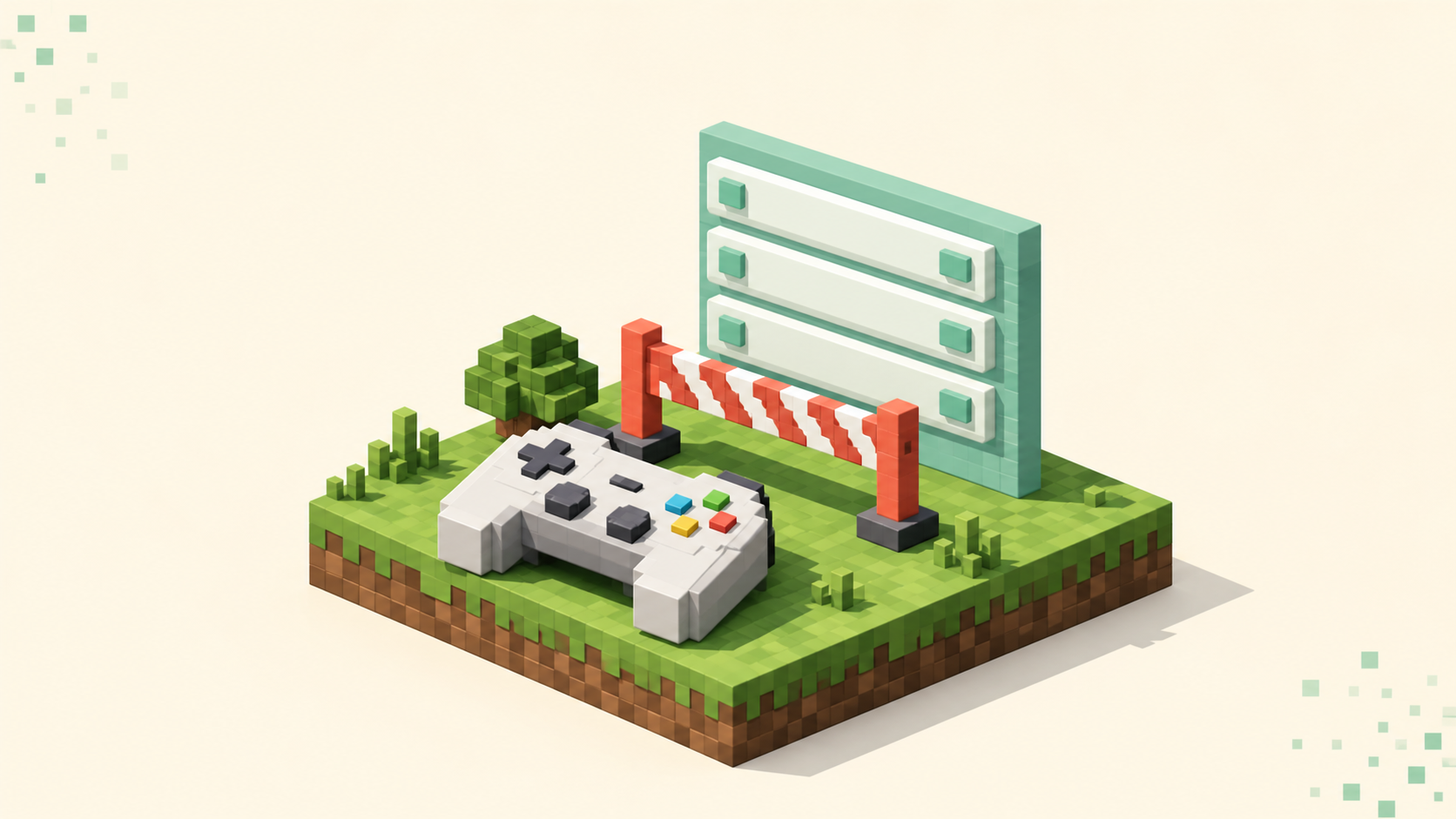
You go to the Servers tab on Xbox, expecting to find the Add Server field your friend on their phone keeps talking about, and it's just not there. There's a curated list of featured servers and nothing else — no box to paste an address into, no menu hiding it. So it reads like a missing feature, or a bug that a reinstall might fix. It isn't either of those. Xbox Bedrock deliberately ships without a way to type in a third-party server address, and the limit lives in the menu, not in your connection.
Worth drawing one line up front, because two problems get mixed together constantly. This post is about there being no place to add the server at all. If you're on a phone or Windows PC where you can add a server but it won't connect — blank screen, no error — that's the connection layer, and it's covered separately in the guide to a Bedrock server that won't connect with no error. Here we're dealing with the step before that: getting the address in somewhere in the first place.
It's the menu, not your network
The Servers tab on Xbox shows only Microsoft and Mojang's featured servers — a small, curated set of partner servers — and there is no built-in option to enter an arbitrary IP. Switch and PlayStation work the same way, so this isn't an Xbox-only quirk; it's how Bedrock behaves on every closed console.
If you've been digging through settings for a hidden Add Server toggle, restarting the app, reinstalling, or re-copying an address from a friend, none of that is going to surface the button. There's nothing to surface. The button wasn't removed by a glitch — it was never present, on purpose.
The reason it feels like something's wrong is that the button genuinely does exist elsewhere. On Windows 10/11 and on mobile Bedrock, the Servers tab has Add Server sitting right below the featured list, where you fill in a name, an address, and a port. So your friend adding the same server on their phone while you can't on Xbox isn't them doing anything clever — it's a plain platform difference. The general how to join a Minecraft server walkthrough shows what that normal add-server flow looks like on the editions that have it.
The practical takeaway: the address, the port, and the version don't matter for this problem. You haven't typed anything wrong, because the console never gave you anywhere to type it.
Why Microsoft locks it down
The honest reason, without overstating it, is moderation. Microsoft curates the console server list for content safety and age-rating purposes — the featured servers are partners that meet platform requirements, and an open IP field would let anyone route a console straight to unmoderated content. That's the trade-off behind the missing box.
This lines up with how consoles handle online content in general. Platform holders gate what console players can reach more tightly than the open PC and mobile ecosystems do, and the Bedrock restriction fits that pattern rather than being some Minecraft-specific punishment.
One thing this means for your expectations: there's no official setting or account permission that adds the button back. People sometimes confuse this with the multiplayer privacy permission on a Microsoft account — the one that gates featured servers and Realms. Flipping that on does not add a custom-IP field. They're two separate things, and only one of them exists.
The realistic workaround: BedrockConnect via DNS
Because the block is in the menu and not enforced at the network level, the community route around it is a DNS redirect. The common tool is BedrockConnect — open-source, made by the community, not affiliated with Mojang or Microsoft. What it does is turn one of your featured-server slots into a server browser, so the screen you'd normally use to join a partner server becomes a menu where you can type any address.
The mechanism is worth understanding, because it explains why it works without modding anything. You change your console's DNS so that when Minecraft goes to reach a featured-server hostname, the lookup is redirected to the BedrockConnect service instead, which answers with a menu that lets you enter custom servers. Nothing gets installed on the Xbox and nothing is changed inside the game itself — the redirect happens at the network lookup, which is the whole point of it being a network setting rather than a game one.
That's also where you make the change. On Xbox it's Settings → General → Network settings → Advanced settings → DNS settings → Manual. You set a BedrockConnect address as the Primary IPv4 DNS and a public resolver like 8.8.8.8 or 1.1.1.1 as the Secondary, save, and let the connection test pass.
After that, opening any featured server brings up the BedrockConnect menu instead of the partner server. From there you choose to connect to a server, enter the address and the port, optionally save it to your list, and submit. The default Bedrock port is 19132 — the same port your friends on mobile and Windows are using — so unless the listing says otherwise, that's the number you enter.
One thing I'm deliberately not doing is printing a specific DNS IP here. BedrockConnect addresses change over time, the main public one gets blocked on consoles often enough that alternates exist, and a stale number can break your console's connection outright. Get the current address from the BedrockConnect project itself rather than copying a number out of an article that might be months out of date.
What the workaround costs you
A few things you should know going in, because the workaround has real edges.
The DNS change is system-wide. It applies to everything your Xbox does online, not just Minecraft. Most of the time other games are fine, but if you start seeing sign-in problems, store errors, or matchmaking acting up, that's the DNS. Set it back to Automatic when you're done playing custom servers and the console goes back to normal.
Reliability isn't guaranteed either. It's a third-party service, the primary endpoint gets blocked periodically, and the steps and addresses shift over time, so treat it as a community workaround you may need to re-check rather than a permanent built-in feature.
It also doesn't bypass the server's own rules. BedrockConnect only gets you to the address. If the destination is whitelisted, on the wrong version, or Java-only with no Bedrock or Geyser bridge, you'll still be turned away — and at that point you're back in connection-failure territory, which the no-error connection guide walks through case by case.
And there's one route that skips DNS entirely: if a friend is already playing on the server you want, the Friends tab's Join Game option drops you in without touching any network settings. It's a clean option when it applies — the catch being that it needs someone you're friends with actively in there.
The easier path: pick a crossplay server
For a lot of people landing on this question the real goal isn't one obscure IP, it's just playing with friends across devices — in which case you don't need the DNS workaround at all, just a server that already accepts Bedrock clients and is healthy.
The live crossplay servers list is filtered to exactly that: servers built to accept Bedrock alongside Java. Worth being upfront that even on a crossplay server, the console still puts you through the same featured-list limitation at the connect step — so BedrockConnect, or a quick hop to a Windows or mobile device, can still be how you actually get the address in. The destination being crossplay-friendly just means you won't get bounced for an edition mismatch once you're there.
A simple trick that lines up with the connection guide: add and confirm the server on a phone, tablet, or Windows PC first, where Add Server works normally, so you know the address and port are good before you go wrestling with the console route. Then the homepage rankings reset every calendar month, so they show what's genuinely active and populated right now rather than a list that went dead two years ago — a far better target than an address you're not even sure still works.
FAQ
Is there any way to get an Add Server button on Xbox without changing DNS?
Not a built-in one — Xbox Bedrock simply doesn't have a custom-IP field, and no setting or account permission adds it. The only no-DNS route is the Friends tab: if a friend is already playing on the server you want, open Friends, find them in-game, and choose Join Game. That drops you onto their server without touching network settings, but it only works while someone you're friends with is actively on it.
Does the BedrockConnect DNS trick affect my other Xbox games?
Yes. The DNS change is system-wide, so it applies to everything your console does online, not just Minecraft. Most of the time other games are fine, but if you notice sign-in hiccups, store errors, or matchmaking trouble, switch your DNS back to Automatic in Settings → General → Network settings. Reverting clears anything the manual DNS was causing, and it's worth doing whenever you're done playing custom servers.
Why doesn't my Xbox connect even after I set up BedrockConnect?
BedrockConnect only gets you to the address — it doesn't change anything about the server itself. If you still can't get in, the cause is on the connection side: a wrong port (Bedrock defaults to 19132), a version mismatch, a whitelist you're not on, or a Java-only server with no Bedrock bridge. Those are the same failures that hit phones and PCs, and our guide to a blank "Unable to Connect" error walks through each one. Also check the BedrockConnect address itself is current, since the main one gets blocked periodically.
Can I just play with friends on Xbox without dealing with any of this?
Usually yes. If the goal is crossplay rather than one specific IP, pick a server already built to accept Bedrock clients — the crossplay servers list is filtered to exactly those, and the monthly rankings show which are active right now. A simple shortcut is to add and confirm the server on a phone or Windows PC first, where Add Server works normally, so you know the address and port are good before deciding whether the console route is worth it.