How to Reduce Minecraft Server Lag on Console
Console lag is usually ping or Wi-Fi, not your Xbox, PS5, or Switch. Pick a nearby server, go wired, close background downloads, find low-ping crossplay.
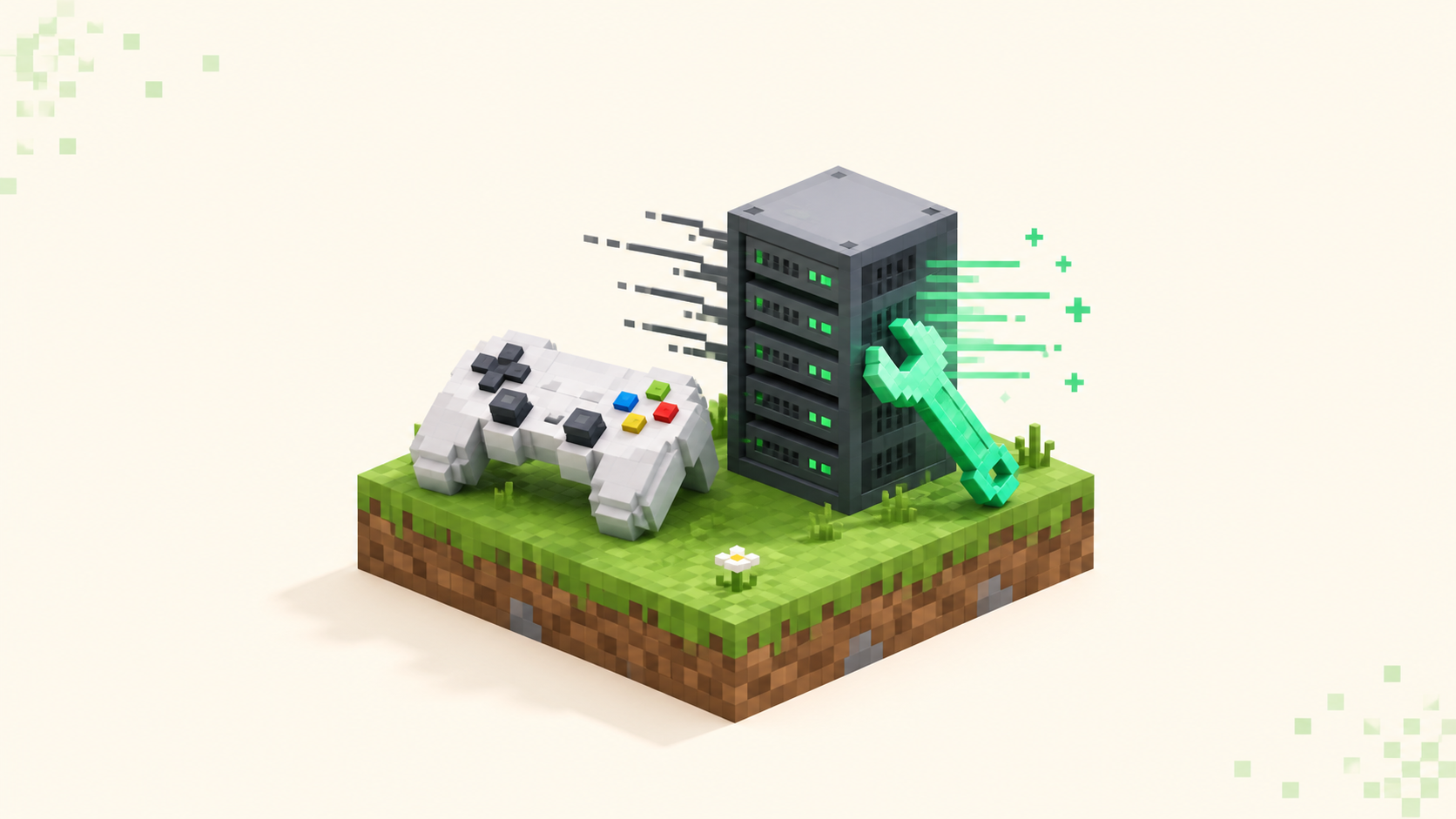
When a server feels laggy on Xbox, PlayStation, or Switch, the console's raw power is almost never the cause. The two things actually slowing you down are distance to the server, which shows up as ping, and the wireless hop between your console and your router. Both of those you can change, and neither has anything to do with how new or fast your console is.
This is about server lag specifically — actions that register a beat late, blocks that pop back, the snap-back to where you were standing — on Bedrock console. It isn't about single-player frame drops, which are a separate thing covered below. The fixes run from the highest-impact and easiest down to the more situational, so you can work straight down the list. And if the server won't connect at all rather than just lagging, that's a different problem entirely, handled in the Bedrock connection guide.
First, figure out which kind of lag you actually have
People call three different things "lag," and the fix is different for each, so it's worth a few seconds to sort out which one you've got.
The first is network or ping lag. You break a block and it pops back, or it breaks a second after you swung; you get rubber-banded to where you were standing; hits land late. That's the round trip between you and the server.
The second is server-side lag, where the server itself is struggling. Everyone on it feels the same delay at the same time regardless of their connection, and there's nothing you can do on your end to fix it.
The third isn't really server lag at all — it's frame-rate stutter. The world looks choppy, chunks load in slowly, but your actions still register the instant you make them. That's the console rendering, a single-player-style issue, not the connection.
Quick self-test: if other players on the same server are also complaining of delay, it's the server's side. If only you lag, it's your connection or distance. If the world looks choppy but your block breaks the moment you hit it, that's frames, not the server.
The one number worth knowing is ticks per second. A healthy server runs at 20 TPS, roughly 50 ms per tick, and when it drops below about 18 under load, every connected player feels actions register late. Nothing you change on your console fixes that one. Most felt lag on console traces back to ping and the link between console and router, though, so those come first.
Pick a server close to you (the biggest single fix)
Ping is the round-trip time for your action to reach the server and come back. The farther the server physically sits from you, the longer that takes, so a North American player on a European server can feel a constant half-second of drag on everything they do.
This is what high ping looks like in practice: delayed block breaking and placing, hits that land late, chests that take a moment to open, and that rubber-band snap-back. All of it is distance and network, not the console.
As a rough guide, under about 50 ms feels smooth and problems start to show past 100 ms. Treat those as "felt" rather than measured, since Bedrock console doesn't put a ping number next to servers the way Java's list does — you're going by how the game responds.
So the practical move is to choose a server hosted in or near your region. Plenty of crossplay servers run regional instances or sit in NA or EU, and picking the nearest one is the difference between smooth and laggy before you touch a single setting. The crossplay servers list is a good place to find active, console-friendly options, and it's worth testing a couple to feel which one responds fastest for you.
Go wired: Ethernet on Xbox, PlayStation, and Switch
The hop between your console and your router is where a lot of avoidable lag hides. A wired connection typically sits around 10–30 ms and stays steady. Wi-Fi can add 10–50 ms or more, and the bigger problem is that it spikes unpredictably — walls and distance from the router push it around, and so does interference from other devices on the network — and those spikes are exactly what cause the random rubber-band moments mid-game.
On Xbox (Series X/S and One) there's an Ethernet port on the back. You plug straight in — there's no setup to do, since it prefers a wired connection automatically.
PlayStation (PS5 and PS4) has a built-in LAN port too. Connect the cable and run through the internet setup, choosing the wired option.
The Switch is the one with a catch worth calling out. The handheld and the original dock have no Ethernet port, so you need a USB LAN adapter, and the Switch has to be docked to use it. The Switch 2's dock has a wired LAN port built in, so you can skip the adapter. Either way, once it's connected, set the connection to wired in System Settings under Internet.
If running a cable genuinely isn't possible, you can still steady the Wi-Fi. Use whichever band is actually stable in your room rather than assuming 5 GHz always wins, move the console closer to the router or the router closer to the console, and try not to play while the same network is busy with something heavy.
Clear the bandwidth your console is quietly eating
Consoles run downloads, updates, and cloud sync in the background, and on PlayStation and Xbox especially those can swallow bandwidth and make your ping fluctuate while you play. You feel it as lag that comes and goes for no obvious reason.
A couple of concrete checks. Pause any game or system download that's in progress before you sit down to play, and keep an eye on whether someone else on the same home network is streaming video or pulling down a large file, because that competes for the same pipe.
It also helps to free the console's own resources. Fully close other apps — streaming apps, browsers — rather than leaving them suspended. Xbox's Quick Resume and the PS5 both keep things parked in the background, and clearing them out frees up memory so the game and its networking aren't fighting for room.
A plain restart still earns its place here. Power-cycling the console clears a stuck state, and restarting the router or modem clears a stale connection or a cached route. It's cheap and fast and fixes more intermittent lag than people expect. None of this rescues a server that's genuinely overloaded or one that's simply too far away, though — it helps a connection that's flickering, nothing more.
When the lag is the server's, not yours
Sometimes you've done everything right and it still drags, because the lag lives on the server. You can spot it when everyone on the server lags the same way at the same time, and it tends to line up with the server being packed at peak hours.
There's a common myth worth correcting about what loads a server. Raw player count matters less than people think; the real TPS drains are entity-heavy farms and big redstone contraptions, plus chunks loading in. That's context rather than a fix, since none of it is something you as a player can change.
What you can do is pick servers that demonstrably stay smooth. Population and uptime are decent signals here — a server that's consistently online and well-run handles its load better than one that's flaky. A packed server isn't necessarily a laggy one; what matters is whether it's well-run for the number of people actually on it. Well-moderated servers also tend to clamp down on the lag-machine builds and rule-breaking that tank performance for everyone, so a moderated community often just feels better to play on.
The live monthly rankings and the crossplay servers category are the best proxy a player has for "this one won't lag," because they surface communities that are genuinely active and staying online right now.
A quick order of operations
To pull all of that into something you can act on:
- Confirm it's ping lag, not frames or a struggling server.
- Switch to a server near your region.
- Go wired, or stabilize your Wi-Fi if you can't.
- Pause background downloads and close other apps.
- Restart the console and the router.
- If everyone on the server lags regardless, it's the server — pick a better-run, nearby one from the rankings.
The throughline holds the whole way down: it's almost never the console's horsepower, it's distance and the connection, and both of those are yours to change. If you hit a connection failure rather than lag, the Bedrock can't-connect guide covers it, and if you're still getting set up, the join walkthrough starts from the beginning.
FAQ
Will a VPN fix Minecraft lag on my console?
Usually not, and it can make ping worse. A VPN routes your traffic through an extra server, which adds another hop and typically increases the round-trip time rather than shortening it. The thing that actually lowers ping is reducing real distance to the game server — picking one hosted near your region — and tightening the link between your console and router by going wired. Spend your effort on choosing a nearby, well-run server from the rankings before reaching for a VPN.
Will turning my render distance or graphics settings down help with server lag?
Not the server kind. Lowering render distance and visual settings eases the load on the console's own rendering, so it can smooth out choppy frames and help chunks draw in faster. But the round trip to the server doesn't care how far you're rendering, so delayed hits, blocks popping back, and the snap-back won't budge from a graphics change. Those come down to ping and your connection, which is where the wired and nearby-server fixes do their work.
Does crossplay between Bedrock and Java players cause lag?
No. When you're on a server, you're each talking to that server independently, so a Java player joining the same world doesn't add to your round-trip time or slow your connection. What can feel like crossplay lag is usually just a server that runs a translation layer to bridge the two editions, and any delay there hits everyone the same way — it's server-side, not something the mix of players creates for you specifically. Pick a well-run crossplay server near your region and the edition split won't be what you notice.
Does the Nintendo Switch really need to be docked to use a wired connection?
On the original Switch, yes. It has no Ethernet port of its own, so you connect a USB LAN adapter, and that requires the console to be in its dock — you can't go wired in handheld mode. The Switch 2's dock has a wired LAN port built in, so you just plug a cable straight into the dock. If docking isn't an option at all, a stable Wi-Fi band and getting closer to the router is the next best thing.