Can You Play Minecraft Servers on Nintendo Switch?
Yes — the Switch runs Bedrock Edition, but it hides custom server IPs behind a featured-server menu. Here's what you can join and the realistic workarounds.
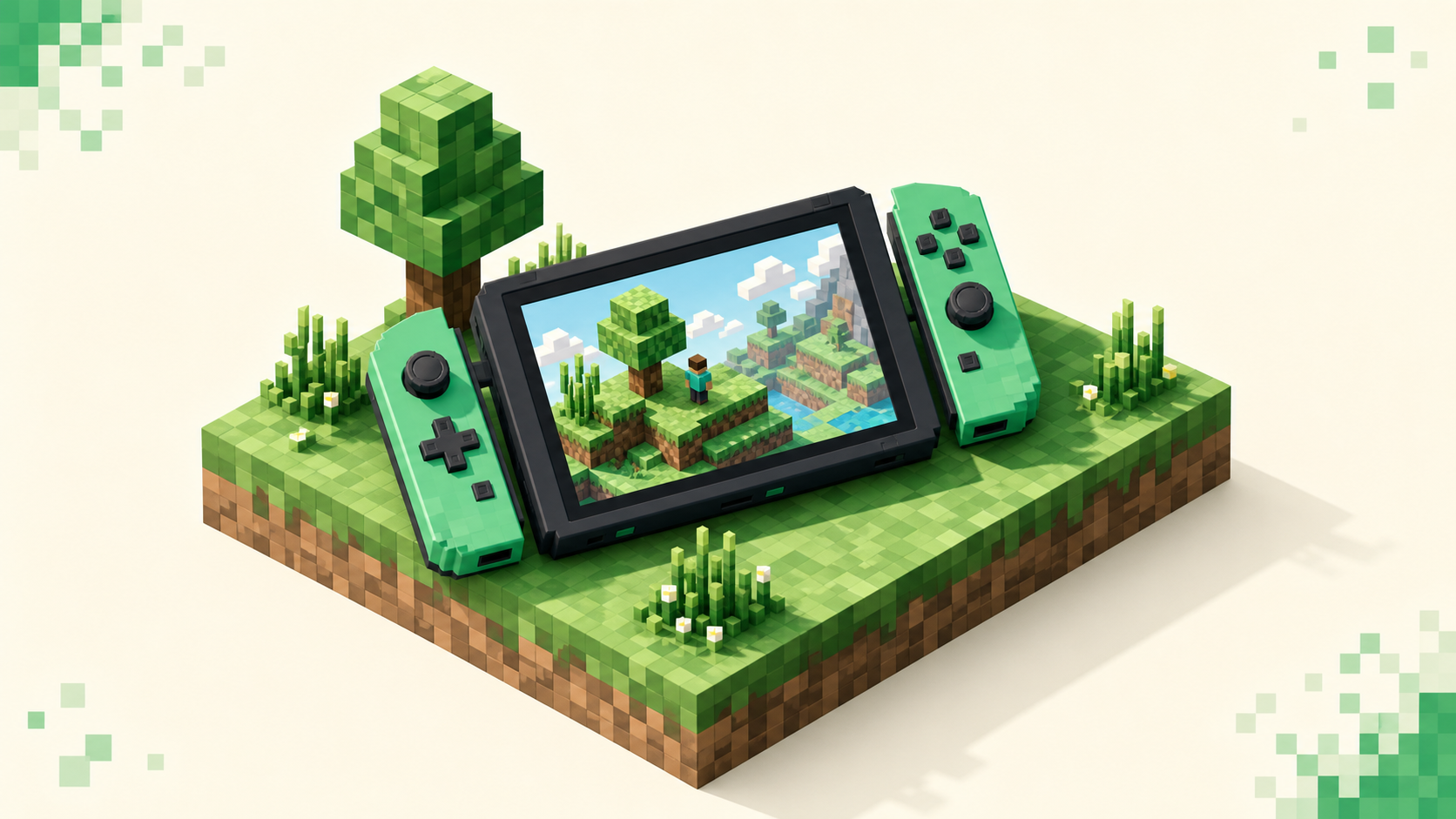
Yes, you can play multiplayer servers on a Nintendo Switch, but it comes with limits the other platforms don't have. The Switch runs Minecraft Bedrock Edition, and Bedrock on a console only shows you a small curated list of featured servers, plus Realms and your friends' worlds. There's no field in the normal menu to type a custom server address, which is the part that trips people up. So if you found a community server online and want to paste its IP in, the Switch won't let you do that out of the box.
What you get without any setup is the featured-server list, Realms, and your friends' online worlds. To reach anything past that — the wider pool of crossplay servers built to welcome Bedrock and console players — there's a DNS workaround, and it's the part most of this post is about.
What you can join on a Switch out of the box
Because the Switch is Bedrock, you're looking for Bedrock-friendly multiplayer, not Java. A few things work the moment you open the game:
- Featured servers. Open the Servers tab and you'll see a short list of large partner servers. One tap joins them, no address needed. These are the big curated names, and for a lot of players they're enough on their own.
- Realms. A paid Bedrock Realm runs fine on Switch and supports crossplay with other Bedrock players — phones, Xbox, PlayStation, and Windows. One thing to know up front: Realms is edition-locked, so a Bedrock Realm can't include Java players.
- Friends' worlds. If someone on your Microsoft friends list has an online world open, you can drop into it straight from the Friends tab.
Two requirements sit behind all of this. You need a Microsoft account linked to your game for cross-platform friends to show up, and online multiplayer generally needs an active Nintendo Switch Online membership. If either is missing, the menus look fine but nothing connects. The rest of the mechanics work the same as anywhere else, and the general walkthrough in how to join a Minecraft server covers the basics.
The catch: no custom server IP field by default
On Windows and mobile, Bedrock's Servers tab has an "Add Server" button. You tap it, type any address and port, and it shows up in your list. On the Switch — and on Xbox and PlayStation — that button just isn't there. So a normal community server address you copied from a listing has nowhere to go through the standard menu.
This is a console platform decision, not anything to do with the server. The closed consoles only surface vetted featured servers, mostly down to chat moderation and age-rating considerations, so the "Add Server" option was left out. The important thing to understand is that it's a menu limitation, not a network one. The server itself is perfectly reachable from your Switch; the console just won't give you a box to type its address into.
It helps to know the default ports here, since you'll see them again later: Bedrock servers default to port 19132, and Java servers to 25565.
The realistic workaround: BedrockConnect via DNS
The standard way around the missing IP field is a free, open-source community tool called BedrockConnect. It turns one of the featured servers into a gateway. You point your Switch's DNS at a BedrockConnect address, and then selecting a redirect-compatible featured server opens a server-list menu instead of dropping you straight into that server. From that menu you pick "Connect to a Server", type the real Server Address and Port, optionally toggle "Add to Server List" so it sticks around, and press Submit.
Setting the DNS happens in the console settings, not in the game. At a high level you go to System Settings, then Internet, open your network's settings, change DNS to Manual, set the primary DNS to a BedrockConnect address with a normal secondary like 8.8.8.8 or 1.1.1.1, and save. Then open Minecraft and tap a featured server. When it's working, featured entries usually show a "Join to open Server List" style message, which is your sign the redirect is live.
A few honest cautions. Public BedrockConnect instances are run by the community, so they can be rate-limited, occasionally offline, or blocked on consoles — the main address in particular gets blocked sometimes. The addresses also change over time, so don't trust any single IP as permanently current; confirm a working one from the BedrockConnect project before you set it, and if one doesn't respond, try an alternate. And because this changes your console's DNS, it affects all of your Switch's traffic, not just Minecraft. If other online features start misbehaving, set DNS back to Automatic. This is a community workaround you're doing at your own discretion, not a feature the platform endorses.
Can a Switch join a Java server? Geyser explained
By default, no. Bedrock and Java clients live on separate networks and can't connect to each other's servers directly. A Switch player can't just join a Java world.
There's server-side software that changes this. Geyser is a proxy that a Java server runs to translate Bedrock network traffic into Java, which lets Bedrock players — consoles included — join a Java world. Paired with the Floodgate addon, Bedrock players can join without needing a Java account at all. The catch for Switch specifically is that Geyser only handles the translation. It doesn't give your console a way to type the address. So even when a Java server runs Geyser, you still need the BedrockConnect DNS step to reach it. Geyser handles the edition gap and BedrockConnect handles the missing address box, so on a Switch you need both.
This is all set up by the server owner, not something you install on your Switch. So the practical move is to look for servers that already advertise Bedrock or crossplay support — the live crossplay servers list is the place to start.
Finding servers that actually welcome Switch players
The smoothest path is picking servers built for Bedrock and crossplay from the start, so you sidestep edition mismatches entirely. Before you go through any DNS steps, confirm the address you have is a Bedrock address and note the port — a Java-only address won't connect through the Bedrock flow no matter what you do.
What makes a server worth your time is the same on console as anywhere. You want one that's actually populated, that stays online, and that's moderated for cheaters. Ping matters too, so pick a region near you and the connection stays smooth on console. Skip the dead, empty, or laggy ones — they're the most common letdown.
A good way to judge which communities are genuinely active right now is the live monthly vote rankings, which order servers by votes that reset each calendar month. Open the crossplay servers category to see the current real list and copy an address from a listing rather than typing it. And if you're still deciding what kind of world you want — survival, skyblock, factions, and so on — Minecraft server types explained lays out the gamemodes.
Quick troubleshooting on Switch
- "Can't connect" right after the DNS change. The public BedrockConnect instance you picked may be down or blocked. Try an alternate current address, or revert DNS to Automatic and try again.
- It won't connect even with the address entered. Double-check the edition and port. A Java-only address dropped into the Bedrock flow, or the wrong port, won't go through.
- Internet works elsewhere but Minecraft never reaches the menu. Confirm Nintendo Switch Online is active and your Microsoft account is linked. Those two gate online multiplayer.
- Featured servers load but no server-list menu shows up. The DNS probably didn't save, or the featured server you chose isn't redirect-compatible. Save the DNS again and pick a different featured entry.
If it's a more general connection problem, the fixes line up with the standard how to join a Minecraft server guide.
FAQ
Does the Nintendo Switch run Java or Bedrock Minecraft?
The Switch runs Bedrock Edition. That means you join Bedrock-compatible servers and Realms, not Java servers — unless a Java server bridges Bedrock with Geyser, and even then the Switch needs a DNS workaround to reach it.
Is BedrockConnect a download or an app I install on my Switch?
No. There's nothing to install on the console. BedrockConnect works by changing your Switch's DNS settings so a featured server redirects to a server-browser menu. You're only editing network settings, not adding software to the system.
Does this work the same on Switch 2?
Yes. Switch 2 runs the same Bedrock Edition with the same missing custom-IP field, so nothing about the workaround changes from the original Switch. The one thing worth re-checking each time is the BedrockConnect address, since public instances change over time and yours may have gone stale since you last set it.