Can You Play Minecraft Servers on a Chromebook?
Yes — a Chromebook can run Bedrock from the Play Store or Java through Linux. Which edition you install decides which servers and ports you can join.
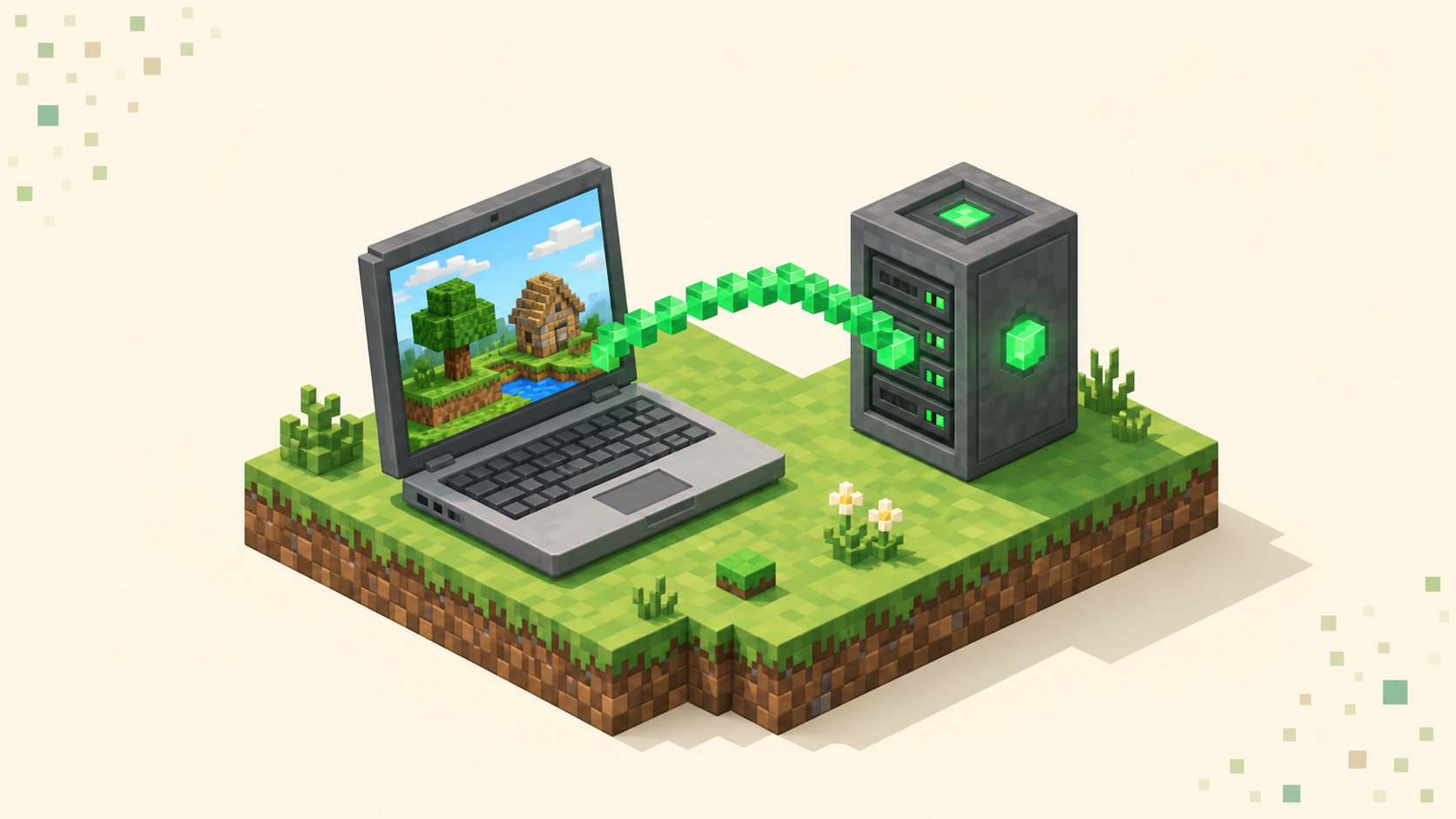
Yes, a Chromebook can play multiplayer servers — but which servers you can join depends entirely on which edition you install, and that depends on your Chromebook. There are two real routes. The easy one is Bedrock Edition from the Google Play Store, which works on most modern Chromebooks and needs nothing more than installing an app. The other is Java Edition through the Chromebook's Linux environment, which takes more setup and only works on capable models. Whichever route you take, you need to own that edition of the game.
The reason the route matters so much is that the edition you end up with decides the port you connect on — 19132 for Bedrock, 25565 for Java — and that in turn decides which listings you can actually join. So pick your route first, then match it to the live server list and the join guide when you're ready to connect.
Route 1: Bedrock Edition from the Google Play Store
Bedrock became officially available for Chromebooks through the Google Play Store on June 7, 2023. This is the supported, no-fuss path — there's nothing to tinker with and nothing to break.
Most Chromebooks launched in 2020 or later can run it. Older models may not have Play Store access at all, or they'll have it but lack the performance to run the game smoothly, so if your Chromebook is more than a few years old, check that the Play Store is actually present before you go further.
Installing is the same as getting any Android app. Open the Play Store, search for Minecraft, install it, and sign in with a Microsoft account. Once it's on the device, you own this edition.
What you get is the Bedrock client — the same edition that runs on phones, Xbox, PlayStation, and Windows 10/11. That means you join Bedrock servers and you can crossplay with people on all those other Bedrock platforms. One nice thing the console versions don't give you: Bedrock on a Chromebook has the Add Server flow, so you can type in a custom server address and port directly instead of being stuck with featured servers.
Route 2: Java Edition through the Linux environment
Java runs through the Chromebook's Linux development environment, the one Google calls Crostini. Mojang ships an official Debian/Ubuntu .deb launcher, and Chromebook Linux is Debian-based, so the two line up reasonably well.
The steps, without turning this into a full tutorial: turn on Linux in your Chromebook's settings, download the official .deb launcher from Minecraft's site, install it, then open it from the Linux apps folder and sign in. As with Bedrock, you need to own Java Edition to play it.
The catch is that not every Chromebook can do this. If the toggle to enable Linux isn't in your settings, your model doesn't support it — and that's common on budget and school Chromebooks, either because the hardware is too old or because an administrator has locked it down. Even when Linux is available, how well Java runs comes down to how powerful the Chromebook is, so a weak machine may struggle on busy worlds.
If it does work, you get the full Java client. That opens up Java servers, including the big modded and plugin community servers that only exist on Java and never get a Bedrock equivalent.
Which edition you end up with decides which servers you can join
This is where the setup choice becomes a practical rule. Java and Bedrock are built on completely different codebases — Java on one side, C++ on the other — and they run on separate networks. A Bedrock client can't directly join a Java server, and a Java client can't join a Bedrock one.
The clearest way to see which is which is the port. Java servers default to port 25565, Bedrock servers to 19132, and the port in a listing tells you which edition that server expects. So a Chromebook running Bedrock joins Bedrock and crossplay listings, and a Chromebook running Java joins Java listings. Check the edition you installed against the listing before you try to connect, and you'll save yourself the "why won't this load" confusion.
There is one bridge worth knowing about. Geyser is server-side software that a Java server owner runs so that Bedrock players — including a Bedrock Chromebook — can join their Java server. It lives on the server, not on your device, so it's nothing you install or configure. What it means for you is simple: don't assume any Java server will let you in from Bedrock. Look for listings that specifically advertise Bedrock or crossplay support, because those are the Java servers that have done the work on their end.
If you're not sure what kind of world you even want to land in, the server types explainer walks through survival, factions, skyblock, and the rest, and the full list shows what's live right now.
Picking a route, and finding a server worth joining
For most people on a Chromebook, the Bedrock Play Store route is the right call. It's the official path, a one-tap install that works on the widest range of models. Go Java only if you specifically want Java-only servers and you have a capable Chromebook with Linux enabled — otherwise you're signing up for setup work and possible performance issues for servers you may not have come for.
Once you're in, what makes a server worth your time is the same on a Chromebook as it is anywhere else. You want one that's actually populated, that stays online instead of dropping out, that moderates against cheaters, and that has a region near you so your ping stays low. A dead or laggy server isn't worth your time no matter what device you're on.
The fastest way to judge which communities are genuinely active is the monthly vote rankings, since the count resets each calendar month and the servers near the top are the ones players are voting for right now. When you've found one, copy the address straight from its listing rather than typing it out — one wrong character looks fine on screen and the server just refuses to load. The join guide covers the actual connect steps, and the current list is where to start looking.
FAQ
Can I run Java Edition on a school-managed Chromebook account?
Usually not. School and work Chromebooks are managed by an administrator, and the Linux environment Java needs is one of the first things admins turn off, even on hardware that could otherwise handle it. If the Linux toggle is missing or greyed out under a managed account, there's no workaround on your end — that's a policy set by whoever runs the account, not a setting you can flip. Bedrock from the Play Store is sometimes left available on the same machines, so that's the one to try first.
Does the Java .deb install survive a Chromebook Powerwash?
No. A Powerwash resets the Chromebook to factory state, which removes the Linux container entirely along with anything you installed inside it, the Minecraft launcher included. You'd need to re-enable Linux and reinstall the .deb afterward. Your game purchase is tied to your Microsoft account rather than the device, though, so you're only redoing the install, not buying anything again.
Can I use a controller with Minecraft on a Chromebook?
On the Bedrock route, yes — Bedrock has native controller support, and a Bluetooth or USB controller paired to the Chromebook generally works the same as it does on a phone or console. The Java route is mouse-and-keyboard by default and has no built-in controller support, so a controller there means extra mapping software and is more trouble than it's worth for most people.
Will my Chromebook progress carry over if I switch routes later?
Server progress lives on the server, not your device, so anything you've done on a given server is still there when you come back — as long as you come back on the same edition. Switching from Bedrock to Java means a different account-side identity and a different set of servers, so you don't carry a Bedrock server's progress onto a Java server. Stick with one edition per server and your progress stays put.