How to Port Forward a Minecraft Server
Port forward a Minecraft server step by step — set a static local IP, open TCP 25565 (or UDP 19132 for Bedrock) on your router, and fix the two usual mistakes.
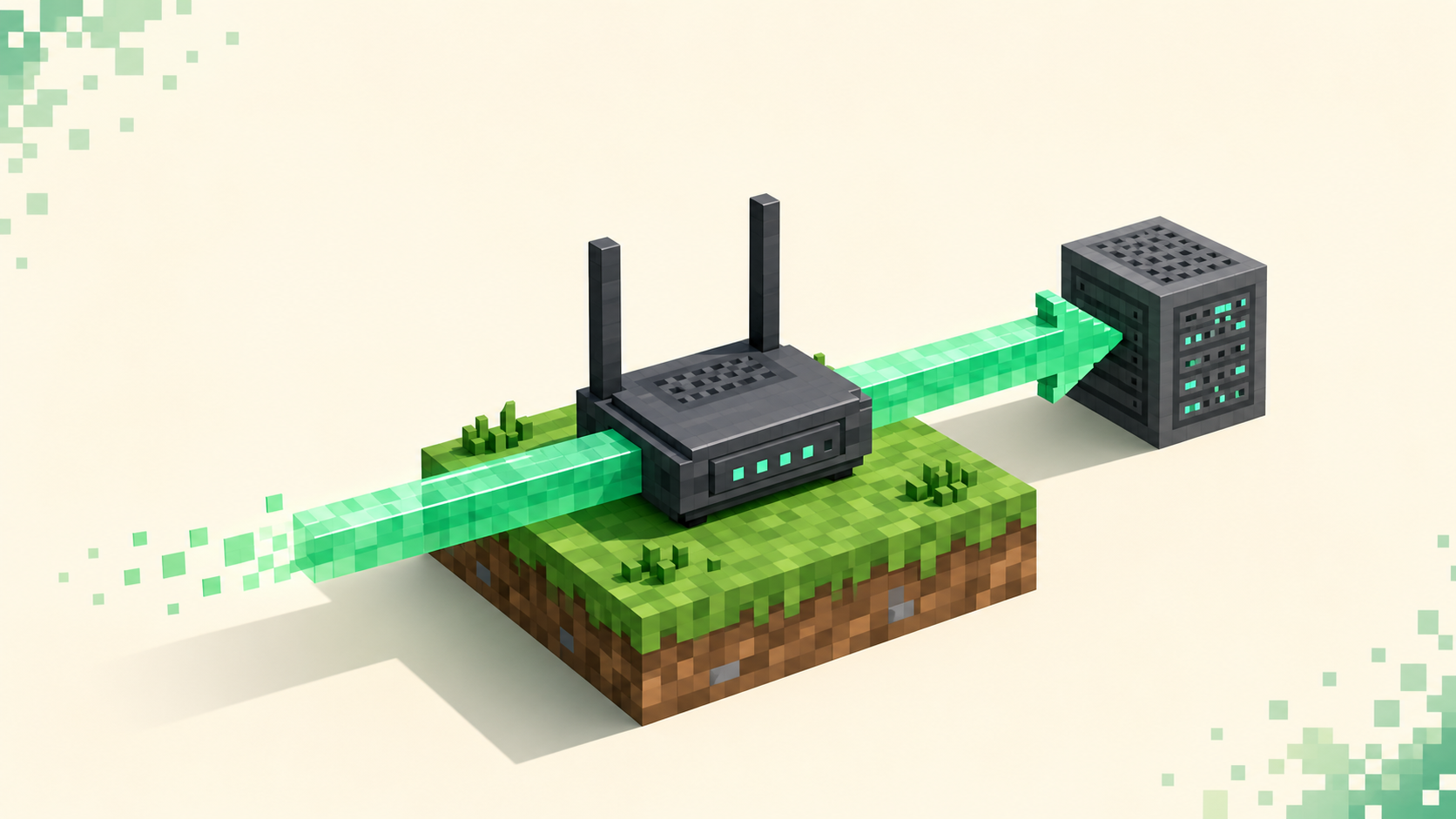
Port forwarding is a single rule in your router that says any connection arriving on a given port should be handed to the computer running your server. For Java that port is TCP 25565; for Bedrock it's UDP 19132. Without the rule, you can join from inside your own house but nobody on the internet can reach you, because the router sees one incoming connection and has no idea which device behind it should answer. Once your Paper server is booted and answering on your LAN, forwarding the port is what turns it from something only you can reach into something friends can actually connect to.
The whole job is four things in order: confirm the port your server listens on, find the server machine's local IP and pin it so it can't change, create the forward in your router, and let the port through the server machine's firewall. Most of the failures I see come from skipping the second or fourth step, so don't rush them.
Step 1: Confirm the port your server uses
Open server.properties in your server folder and find the server-port line. By default it reads:
server-port=25565
If you left it at 25565, players can connect with just your IP and no port suffix, which is the path of least resistance. If you changed it — say two servers on one machine — note the exact number, because every later step has to use the same one. There's also a query-port line; you only need to forward that if you run a plugin or service that uses the query protocol, and most people don't.
Step 2: Find the server's local IP and make it static
You need the local address of the machine running the server, the one that looks like 192.168.1.42.
- Windows: open Command Prompt and run
ipconfig. Read the IPv4 Address under your active adapter. - macOS: run
ipconfig getifaddr en0(oren1on Wi-Fi), or check System Settings → Network. - Linux: run
ip addr showand read theinetline.
Here's the part people skip and then can't figure out why their server "randomly" stops working: that local IP is handed out by DHCP and can change when the machine reboots. If your forward points at 192.168.1.42 and the router later reassigns the server to 192.168.1.57, the rule now aims at nothing. Fix it once by reserving the address. In your router's DHCP settings, bind the server's MAC address to a fixed local IP (often called a DHCP reservation), or set a static IP on the machine itself. Do this before you build the forward so you only enter the number once.
Step 3: Create the forward in your router
Open a browser and go to your router's admin page — usually 192.168.1.1 or 192.168.0.1, the same address shown as the "Default Gateway" in that ipconfig output. Log in, then find the section called Port Forwarding. Router makers love to hide it: it can sit under NAT, Virtual Server, Applications & Gaming, or Advanced.
Add a new rule with these values:
- External / start port:
25565 - Internal / end port:
25565 - Protocol: TCP for a Java server (UDP if it's Bedrock — more on that below)
- Internal IP / device: the static local IP from step 2, e.g.
192.168.1.42
Save and, if the router asks, apply or reboot. You're mapping the public side of port 25565 to one specific machine on your network. There's no need to forward a giant range; Java needs exactly the one port, and opening more than you use is needless exposure.
Step 4: Let the port through the machine's firewall
The router now forwards traffic to your computer, but the computer's own firewall can still drop it. On Windows, the first time the server runs Windows Defender Firewall usually pops a prompt — allow it on Private networks. If you dismissed that prompt, add an inbound rule for port 25565 manually under Windows Defender Firewall with Advanced Security. On Linux with ufw, it's sudo ufw allow 25565. This is the step that produces a forward that tests as "open" on the router but still gives players Connection timed out — the packets reach the machine and the local firewall quietly drops them.
Bedrock and crossplay use a different protocol
Bedrock doesn't ride on TCP. It uses UDP on port 19132, so a TCP-only forward will never let a Bedrock client in, even though the numbers look right. If you forward a port for Bedrock, set the protocol to UDP. Running both editions on one box means two separate forwards: TCP 25565 for Java and UDP 19132 for Bedrock, each pointed at the same local IP. Plenty of the communities on the crossplay rankings are doing exactly that, often with a proxy bridging the two editions behind those two rules.
Test it from outside, and give players the right address
Test from a network that isn't yours — phone data with Wi-Fi off is the easiest, or ask a friend to connect. Local tests lie, because a device inside your house reaches the server by its local IP and never touches the forward at all.
Players connect using your public IP, which you can find by searching "what is my IP" or reading the WAN/Internet status page in the router. If you kept the default port, they enter just the public IP under Multiplayer → Add Server. If you changed it, they need your.public.ip:PORT. Typing a raw IP is awkward and your public IP can change, so most owners eventually point a domain at it; an SRV record lets players join with a clean address and hides the port entirely. One thing to be aware of once you're exposed: your home IP is now visible to anyone who joins, so it's worth reading up on keeping a server protected from DDoS before you advertise it widely.
When port forwarding just won't work
If you've done all four steps cleanly and outside connections still time out, the usual culprit is CGNAT — your ISP is sharing one public IP across many customers, so you don't actually own the address you're forwarding to. The tell: the WAN IP shown in your router doesn't match the public IP a "what is my IP" search reports. No router rule can fix that, because the forward stops at your router and the ISP's equipment is upstream of it. The other common blocker is double NAT, where a second router (or an ISP modem in router mode) sits in front of yours and the forward has to be repeated on the outer box. When the network is genuinely against you, running a server without port forwarding through a tunnel is the realistic way out.
FAQ
Players outside my network still get "Connection timed out" — what now?
Walk it backwards from the server. Confirm it's running and that you can join via its local IP from inside the house; if that fails, fix the server before you touch the router. If the local join works, the firewall on the server machine is the most common cause of a timeout that survives a correct forward, so re-check the inbound rule for your port before blaming anything else. One distinction worth knowing: Connection refused is a different failure from Connection timed out. Refused means the machine answered but nothing is listening on that port — usually a wrong server-port or a stopped server — while timed out means the packets never got a reply at all, which points at the forward, the firewall, or CGNAT.
Do players in my own house need me to port forward?
No. Anyone on the same network connects straight to the server's local IP, like 192.168.1.42:25565, and never crosses the router's forward. Port forwarding only exists to let connections from the wider internet in. If you only ever play with people in the same building, you can skip all of this and just hand them the local address — or use the in-game Open to LAN option, which broadcasts the world on a random temporary port that other machines on the LAN discover automatically.
Can I forward a different external port than the server listens on?
Yes, the external and internal ports don't have to match. You can forward external 25600 to internal 25565, which lets you run several servers behind one IP by giving each a unique outside port. Players then connect with your.public.ip:25600. Just keep the internal port equal to each server's own server-port, since that's the value the server is actually bound to.
How do I confirm which port my server is actually bound to?
Watch the console at startup — the server logs the port it's listening on as it finishes loading, which catches the case where server.properties says one thing but a launch flag or second config quietly overrode it. To check reachability from outside without rounding up players first, run any "Minecraft server status" checker against your public IP and port, or use nslookup on your domain to confirm an SRV record resolves to the right host.