How to Update Your Minecraft Client to 26.2
How to update your Minecraft Java client to 26.2, keep a 26.1 profile for older servers, and match protocol 776 before you try to join.
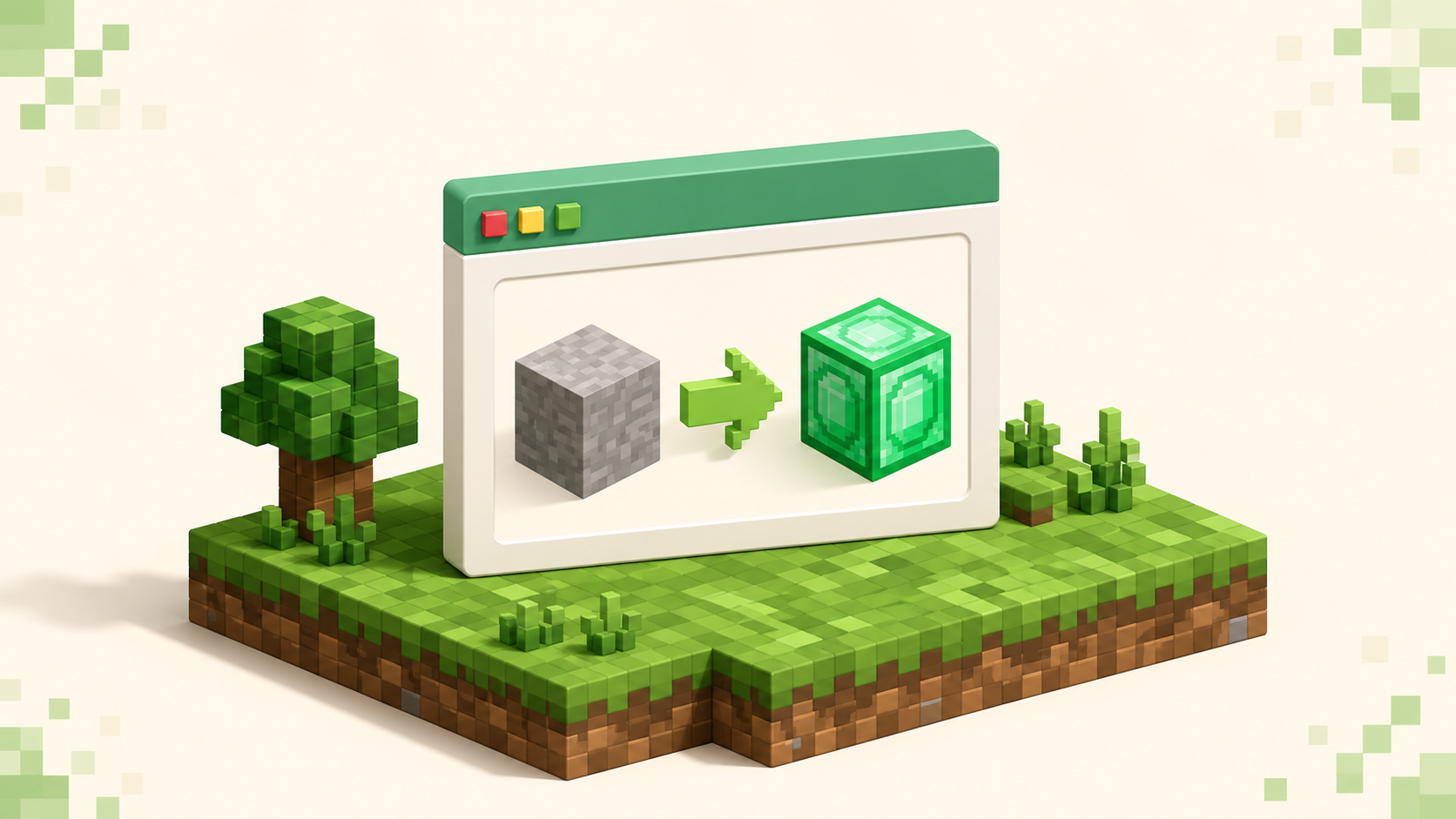
Updating to 26.2 on Java is mostly picking the right version in the launcher and waiting for the download, but the part worth getting right is keeping a 26.1 profile alongside it so you don't lose access to servers that haven't updated yet. 26.2 "Chaos Cubed" shipped on 2026-06-16 and runs network protocol 776, while 26.1 runs 775, and that protocol number is what decides which servers you can join once you've updated.
Since this was written, 26.3 "Wilderness Bound" has come out (September 15, 2026), so the launcher's "Latest release" now installs 26.3 rather than 26.2, and the steps below get you 26.2 itself by picking it from an installation's version list.
Once you're on 26.2, the live 26.2 server list is where to find places already running it. The only requirement to play any of this is owning the base game — there's nothing else to set up.
Step 1: Update to 26.2 in the Minecraft Launcher (Java)
Back in June the fast path was the launcher's "Latest release" profile, which auto-updates, so pressing Play pulled 26.2 down and launched it. Now that "Latest release" means 26.3, getting 26.2 takes an installation of its own.
Open the Installations tab, click New installation, open the Version dropdown and pick the explicit 26.2 entry (not "Latest release"), give it a name like "26.2," and click Create. Then select that installation in the dropdown next to the Play button and press Play, and the launcher pulls 26.2 down for you (if you don't have it yet) and launches straight into the game. No third-party tools, no extra installers; this is all the official Minecraft Launcher.
One thing to keep in mind for the next step: the "Latest release" profile keeps advancing to whatever drop is newest, which is why it's already on 26.3. An installation pinned to a specific version stays put, and that's exactly how the fallback needs to be handled too.
Step 2: Keep a 26.1 profile alongside 26.2
Once you're on 26.2 and running protocol 776, any server still sitting on 26.1 (protocol 775) turns you away. A pinned 26.1 installation lets you hop back to those servers without re-downloading anything or fiddling with settings each time.
To set one up, open the Installations tab, click New installation, open the Version dropdown and pick 26.1, give it a name you'll recognize like "26.1 fallback," and click Create. The important detail is pinning it to 26.1 specifically rather than "Latest release" — that keeps it parked on the older drop so it doesn't quietly advance with the next update, which would defeat the purpose of having a fallback.
Now you've got two profiles side by side. Launch the 26.2 one for 26.2 servers and the 26.1 one for servers still on the older drop, switching between them from the dropdown next to Play. Switching your client installation between versions is safe for joining multiplayer, with one caveat worth a quick word: don't open a single-player world that was last saved in 26.2 using a 26.1 client. If you ever need to load such a world on the older version, back it up first.
Step 3: Confirm you're on 26.2 and protocol 776
There are two easy ways to check which version you're actually running. In the launcher, the active version shows right in the installation dropdown. In the game, the version number sits on the bottom-left of the title screen — if it reads 26.2, you're on protocol 776.
That protocol number is the thing that matters once you start connecting. 26.2 is 776 and 26.1 is 775, and a server only accepts a client whose protocol matches its own. So confirming 776 isn't busywork; it tells you exactly which listings will let you in. While you're orienting yourself, it helps to know Java's default port is 25565 (Bedrock's is 19132) — that comes up when you start pasting addresses.
Step 4: Match the listing's version before you connect
This is where the update ties back into actually playing. Before you connect to anything, check the version the server listing says it runs, because a 776 client can't join a 775 (26.1) server until one side updates.
Every listing on this site shows the version it runs, so you don't have to guess. Browse the live 26.2 servers to find communities already on protocol 776, or the 26.1 servers if you're reaching for your fallback profile. One typing note: the version path is dotted, so it's /servers/version/26.2, not the hyphenated form, which won't load. If a listing reads 26.2, launch your 26.2 profile and connect. If it reads 26.1, switch to the 26.1 fallback from Step 2 and connect with that. For the actual connect-by-address steps — pasting the address, adding the server, hitting join — how to join a Minecraft server walks through it.
A note for Bedrock players
Bedrock updates differently. It auto-updates through its store or platform and doesn't expose easy version pinning the way Java does, so Bedrock players generally can't hand-pick or hold onto an older client. That means you can't keep an older fallback version the way Java lets you, so your options are to wait for a server to update to your version, or pick one that's already on it. Everything above is Java-centric for that reason — the launcher's version control is a Java feature.
What to do if a favorite server hasn't updated to 26.2 yet
A server still on 26.1 a few days after 26.2 ships is completely normal. The server software and mod loaders — Paper, Spigot, Fabric, Forge — and the individual plugins and mods on top of them each update on their own schedule, and they trail Mojang's release rather than landing the same day. 26.2 also carries a breaking change: the entity-predicate format was restructured, which gives careful owners a real reason to test on a copy before flipping a live server over.
There's no point guessing a date here. Check each project's current status rather than expecting a fixed timeline, and know that it resolves itself as the projects catch up. Until your server makes the jump, launch your 26.1 profile and keep playing there, then switch back to 26.2 once it moves. The active, well-maintained servers near the top of the rankings tend to update within days to weeks of a drop, so a long wait usually points to a quieter server rather than a problem on your end.
FAQ
Do I have to delete 26.1 to install 26.2?
No. The two versions live as separate installations in the launcher, so installing 26.2 doesn't touch 26.1 — that's exactly what lets you keep a 26.1 profile around. If you need to roll back after updating too early, you don't reinstall anything: just pick your pinned 26.1 installation from the dropdown beside the Play button (or create one as described in Step 2) and press Play.
Why can't I join a 26.1 server after updating to 26.2?
The protocol numbers differ — 26.2 is 776 and 26.1 is 775 — and a server only accepts a client whose protocol matches its own, so it turns you away with an "Outdated server!" message. The fix is to switch your client to a 26.1 profile to join that one, or pick a server already on 26.2. You don't need to install anything special to force the connection through; the version just has to line up.
Is it safe to switch a client installation back to 26.1?
Yes, for joining multiplayer servers it's fine to move a client between versions as often as you like. The one real risk is on the single-player side: opening a world that was last saved in 26.2 with the older 26.1 client can damage it, so back that world up first if you ever need to load it on the older version.