How to Fix "Connection Refused: No Further Information" in Minecraft
Fix Minecraft Java's "Connection refused: no further information" — what it means, why it's usually the server and not you, and the checks to run in order.
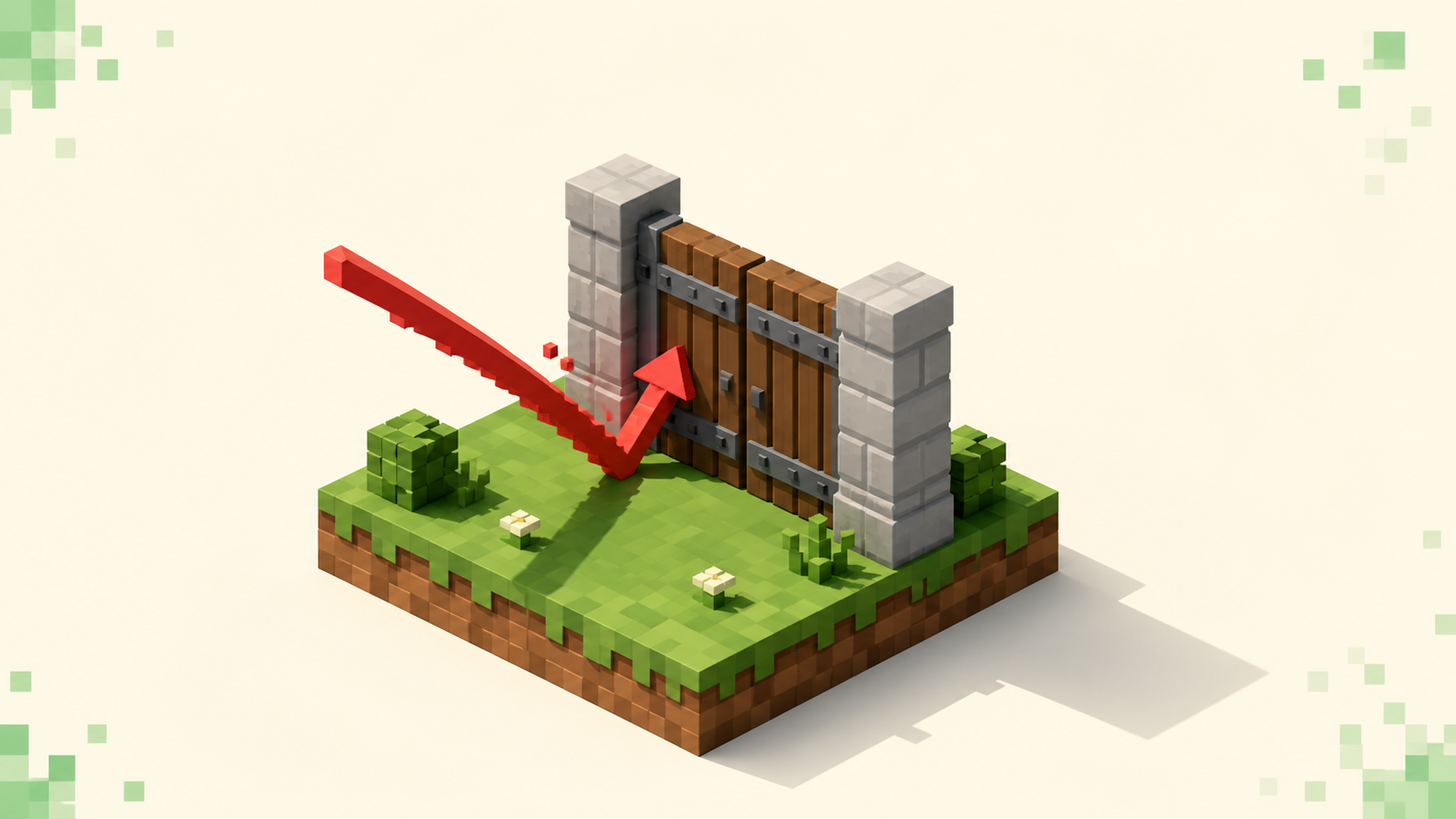
When java.net.ConnectException: Connection refused: no further information: lands in red after you click a server, the good news hiding in it is that your machine reached the host just fine — it got a fast, deliberate "no" back instead of silence. Something answered, which means your network path to the server is working and the problem is almost always on the other end: the server process is down, crashed, or still booting, or you aimed at a port nothing is listening on. That makes refused easier to act on than most connection errors: it points straight at the server's status and the port, not at your own firewall. The fix order below starts with the cheapest, most common cause, and the contrast with a connection that times out instead is the single most useful thing to understand first.
What "connection refused" actually means
Your client opened a TCP connection to the address and port you gave it — it sent a SYN packet, the first step of the handshake — and the host replied with a TCP RST, a reset, because nothing was bound to that port to accept the connection. That reset is what produces "Connection refused." It comes back in milliseconds, not seconds, because the host made a quick decision to turn you away rather than leaving you hanging. The no further information tail is just Java's generic suffix when the operating system handed back no extra socket detail; on macOS, Linux, or older builds the same condition reads java.net.ConnectException: Connection refused: getsockopt instead. Different wording, identical cause: the host is up, the port has no listener.
The distinction that matters most is refused versus timed out, because they describe opposite situations. Refused means the host answered fast to say there's nothing to connect to — the server process isn't running, or you hit the wrong port. Timed out (Connection timed out: no further information) means nothing answered at all; your packet vanished into silence, usually a firewall dropping it or the host being fully offline. Watch the operative word, not the suffix — both errors can end in no further information or getsockopt, so "refused" versus "timed out" is the part that tells you which problem you actually have. If your screen shows the silent-timeout version instead, that one has its own separate walkthrough, and the family of io.netty.channel connect exceptions that wrap both is broken down message by message here.
First, check whether the server is actually up
Because a refused connection means the host answered, the most likely explanation is that the host is online but the Minecraft server itself isn't accepting connections yet — it crashed, was stopped, or is mid-restart. Connecting during a restart commonly gives you "refused" right up until the server finishes booting, and then the same address works with no change on your part. So before you touch anything local, find out whether the server is up.
The fast way is to look it up on the live monthly rankings or the full server list. Both show a current ping and player count pulled by the listing's own status check, which reaches the server the same way your client does. If it shows offline or grey, that's the answer — the server is down, it's not you, and the right move is to wait and retry rather than edit a single setting on your end. A refused connection during a restart resolves itself; give it a minute and try again. There's no point allowing Java through a firewall to reach a server that simply isn't running yet.
Double-check the address and the port
The second most common cause is connecting to a port where nothing is listening. Java's default port is 25565, and when a server runs on the default you type only the hostname with nothing after it. You append :port (like play.example.net:25540) only when the listing names a non-default one — and if you leave that custom port off, you land on 25565 where nothing is bound, and the host refuses you. Pull the exact address and port straight from the server's listing rather than typing them from memory.
The classic wrong-port mistake is pasting 19132 onto a Java address. That's the Bedrock default, and it's UDP — a Java server isn't listening there, so you get refused. Java uses TCP 25565; Bedrock uses UDP 19132; they don't overlap. Re-copy the address cleanly, drop any stray http:// or trailing characters, and make the port match exactly what the listing shows.
If the address and port both match and the listing shows the server live for everyone else, it's a restart window — wait a minute and retry once before assuming anything's broken.
Only then, suspect your own machine
This is last for a reason: a refused connection is strong evidence your end is fine, because the host answered. But on some systems a local firewall or antivirus blocking outbound Java can surface as a refused-style error rather than a clean timeout, so it's worth a check once the server-side causes are ruled out. Make sure javaw.exe and Minecraft are allowed through Windows Defender Firewall and any third-party antivirus. Temporarily switching the firewall off to test is a quick way to confirm whether that's the culprit before you add a permanent allow rule — just turn it back on afterward.
If a different, known-good server from the rankings connects fine while the first one refuses you, your machine and network are clearly working and the problem is specific to that one server — back to waiting on it or correcting its address.
If you run the server: the owner-side checks
Players can't fix any of this from the client, but if it's your own server refusing connections, the causes cluster in a few places. Confirm the console actually printed Done and the server is listening, not stuck in startup or crashed. Check that server-port in server.properties matches the port you're advertising (server-port=25565 for the default), and that server-ip= is left blank so it binds to all interfaces rather than a local-only one. Then confirm the host's own firewall and any port forwarding allow that port through. A server-ip bound to the wrong interface or a mismatched server-port will refuse remote players while still looking fine from the same machine.
A different error, not a refused socket
One failure mode gets confused with this and shouldn't: a version mismatch produces a kick screen reading Outdated client! or Outdated server!, not a refused connection. That happens when your client and the server are on different network protocols — per current versions, 26.3 "Wilderness Bound" runs protocol 777 and 26.2 "Chaos Cubed" runs protocol 776, and they can't talk to each other. Outdated client! means your side is behind and needs to update; Outdated server! means the server is behind, which you'll usually see right after you've updated ahead of it. If you want to match the server's version up front, the listing filters by 26.3, 26.2 and 26.1 directly. Either way, a version kick is a different problem with a different fix — it never shows up as Connection refused.
FAQ
Why does the same server refuse me for a minute and then let me in?
Because it was restarting. A server that's stopped or still booting has nothing listening on its port, so the host fires back a TCP reset and you get "Connection refused" instantly. Once the console reaches Done and binds to the port, the same address connects — which is why retrying a minute apart beats changing settings whenever the listing shows that server as normally healthy.
I get "Connection refused: getsockopt" instead of "no further information" — is that a different problem?
No, it's the same error with a different OS-supplied tail. getsockopt is the system call Java makes to read the result of a connect attempt; when the connection was refused, that call reports the refusal, and Java prints getsockopt instead of no further information. Windows tends to show no further information, while macOS and Linux often show getsockopt. The cause is identical in both cases — nothing listening on the port you hit — so you troubleshoot them the same way.
How do I tell whether it's the port or the server being down?
Test a known-good server from the rankings. If it connects, your client, firewall, and network are all fine, which narrows the original failure to that one server — either its address and port don't match what you typed, or it's down. Then re-copy the exact address and any non-default port from its listing; if those are correct and the listing shows it live for everyone else, it's a restart window and waiting is the fix. If even the known-good server refuses you, the problem is local and the firewall check applies.
Does reinstalling Minecraft or Java fix a refused connection?
No, and it's the wrong instinct here. The error proves your client launched, reached the Multiplayer screen, and successfully sent a packet that the host answered — the install works. Reinstalling can't change a server that's offline, a wrong port, or a server.properties the owner misconfigured, which are the actual causes. Confirm the server's status on its listing, re-check the address and port, wait out a possible restart, and only then look at your local firewall.