How to Turn a Singleplayer World Into a Multiplayer Server
Move a singleplayer save onto a Java/Paper server step by step — back up first, copy the world folder, set level-name, and why your inventory won't follow.
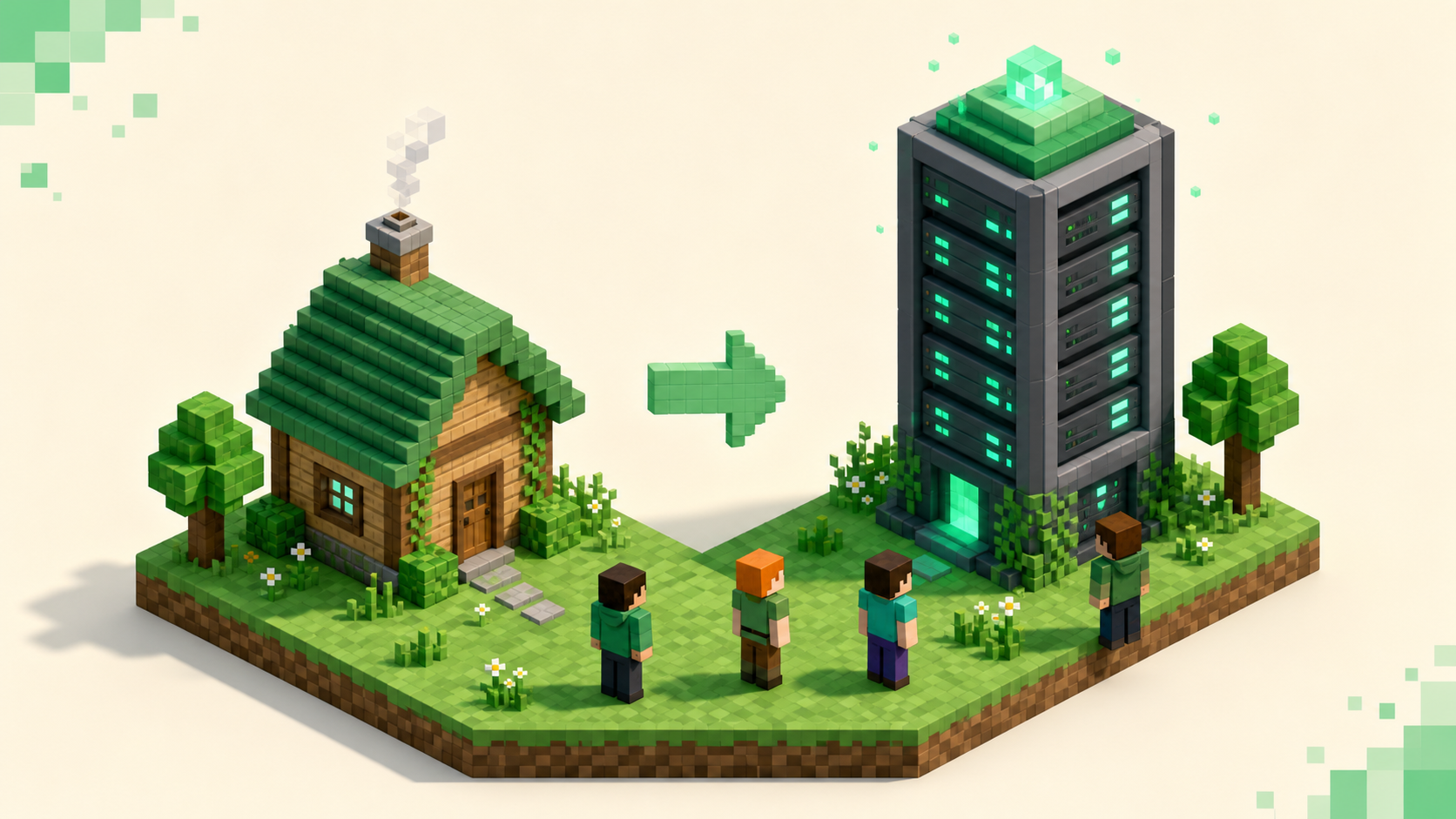
Your singleplayer world becomes a server world by copying its folder into the server directory and pointing level-name at it — but back the folder up before you touch anything, because Paper rewrites the world's on-disk layout the first time it loads and that change is a pain to undo. The terrain, your builds, the chests, the villagers, and the seed all come across. The one thing that quietly doesn't is your own inventory, and that catches almost everyone, so I'll cover it properly below.
This assumes you've already got a server to move the world onto. If you don't yet, setting up a Paper server is the place to start, and you'll want it stopped and working before you bring a world into it.
Find the save folder
Every singleplayer world is its own folder inside your saves directory, named exactly as it shows in the world-select menu. Open the right path for your operating system:
- Windows:
%APPDATA%\.minecraft\saves\<world> - macOS:
~/Library/Application Support/minecraft/saves/<world> - Linux:
~/.minecraft/saves/<world>
Inside that folder you'll see level.dat (which holds the seed, time, gamerules, the generator, and your singleplayer player), a region/ folder of chunk data, and supporting folders like data/, playerdata/, datapacks/, and poi/. That whole folder is the world, and its exact name — spelling and capitalization included — is what you'll hand the server in a minute.
Back it up before anything else
Right-click the world folder and compress it to a .zip, and leave that zip somewhere safe. This step matters more here than in most jobs because of what Paper does on first load: it reads the vanilla save and rewrites the dimension layout into its own format, and getting back to a plain vanilla world afterward means merging folders by hand. Work on a copy and the original singleplayer save stays exactly as it was, openable in your client at any time. That single archived copy is the non-negotiable part of the move; if you'd rather have a repeatable backup routine, set one up once the server's running.
Copy the world onto the server
Stop the server first. You don't want files changing on disk while you're writing into the same directory — a world copied mid-write is how you get a corrupt chunk on the very first boot.
With the server down, copy the world folder into the server root, the directory that holds the server jar and server.properties. On a managed host that's usually an SFTP upload with FileZilla or WinSCP; on a box you run yourself it's a plain file copy. Copy, don't move — leaving the singleplayer original in saves keeps your local copy playable if anything goes sideways.
There's one more thing worth understanding about what you're uploading. A vanilla save and a Paper server store dimensions differently, and Paper sorts that out for you on its own:
- The vanilla save you're copying keeps everything in the one world folder. On a modern 26.1+ save the dimensions live under
dimensions/minecraft/overworld/,dimensions/minecraft/the_nether/, anddimensions/minecraft/the_end/, each with its ownregion/. Older saves use the legacy form, with the Nether inDIM-1/and the End inDIM1/inside the world folder. - Paper doesn't keep them together. On first load it splits the Nether and End out into sibling folders next to the world: the Overworld stays in
world/, the Nether becomesworld_nether/(holdingDIM-1), and the End becomesworld_the_end/(holdingDIM1). If you name the world something else, the siblings follow it as<name>_netherand<name>_the_end.
You don't pre-split anything. Upload the world folder as it is and let the server do the conversion when it starts.
Point level-name at the folder
Open server.properties and set level-name to the exact folder name you uploaded:
level-name=world
The default is world, and the description in the file is plain about what it does: if a valid world exists at that path, the server loads it; otherwise it generates a brand-new one there. So the single most common mistake is a name that doesn't match the folder. If your folder is MyAwesomeBase, then level-name=MyAwesomeBase, character for character. On a Linux host the filesystem is case-sensitive, so MyWorld and myworld are two different worlds and one of them doesn't exist.
While you're in the file, leave level-seed= blank — it's ignored when an existing world loads, so it won't override your save's real seed. level-type=minecraft:normal and server-port=25565 (the Java default) can stay as they are unless you've a reason to change them.
Start it and check the log
Start the server and watch the console. You're looking for it to load the world you named rather than announce it's generating a new one. "Preparing level" followed by your world name is the good sign. If instead it builds fresh terrain and your builds aren't there when you join, that's the tell that level-name doesn't match the folder — stop the server, fix the spelling, and start again. Nothing was lost; the server just loaded the wrong (empty) world.
If the world refuses to load at all, the usual culprit is a version mismatch, which is the next thing to get right.
Match the server version to your save
A world is tied to the version it was last opened in, and that only runs one way. Upgrading a save to a newer version on load is supported; downgrading is not. A 26.3 save carries data version 5023, a 26.2 save 4903 and a 26.1 save 4786, so opening a 26.3 singleplayer world on a 26.2 server means asking it to downgrade, which can fail outright or corrupt chunks.
That's a real fork right now. As of September 2026, Paper's stable builds are for 26.2 and its 26.3 builds are still experimental, but the launcher's "Latest release" is 26.3, so a save you've opened recently may already be on 26.3. If it is, it needs a 26.3 server — vanilla, or Spigot built with BuildTools — or it waits until Paper marks 26.3 stable. Don't put a world you care about on an experimental Paper build. If it's still a 26.2 save, run a stable 26.2 Paper build and don't open the save in a newer client in the meantime; the same logic applies one step down if your plugin stack still requires 26.1. Match the server to the version the save was last saved in — the 26.1, 26.2 and 26.3 lists show which servers already run each.
This is separate from the "Outdated client!" and "Outdated server!" kicks you might see when a player tries to join. Those are a connection-version mismatch between the joining client and the running server, not a sign the save file can't load — a different problem with a different fix.
The catch: your inventory doesn't come with you
The world carries everything stored in its region files and level.dat — terrain, builds, chests, villagers, mob and tile-entity state, the seed, all of it. What does not follow you is your own player: your inventory, XP, ender chest, spawn point, and position. You'll log into your old base standing empty-handed at world spawn, and it looks like the move failed when it's working as designed.
The reason is where the player gets stored. Singleplayer keeps you inside level.dat, under the Player tag, while a server ignores that and loads a per-account file, playerdata/<uuid>.dat, keyed to your Minecraft account's UUID. No such file exists yet for you, so the server spawns you fresh — the same way every other player who joins gets their own playerdata file the first time.
If you want that singleplayer inventory back, it's a manual job with an NBT editor like NBTExplorer: open the save's level.dat, copy the Player tag, and write it into your playerdata/<uuid>.dat, server stopped and a backup in hand. For most people the cleaner path is to accept the fresh start, or /gamemode creative yourself the essentials back. Treat carried-over inventory as the exception you do by hand, not the default.
Once the world's up and stable, the last step is getting people in — port forwarding opens 25565 to the outside world, and from there your old singleplayer base is a shared one.
FAQ
My world loaded but the Nether and End are empty — did I lose them?
Almost certainly not. Check the server root for world_nether/ and world_the_end/ (or <name>_nether and <name>_the_end if you used a custom level-name). If the upload only included the Overworld region and not the original dimension folders, the other two dimensions had nothing to convert from and the server generated empty ones. Re-upload the complete world folder from your backup zip with the server stopped, so the full DIM-1/DIM1 or dimensions/minecraft/... data is present when Paper does its first-load split.
The world won't load and the log mentions a missing datapack or feature. What happened?
If the singleplayer world had datapacks installed or experimental features toggled on, the server needs those too, or it can refuse to load the world. Copy the world's datapacks/ folder over with the rest of the save, and make sure any experimental toggle the world relied on is available server-side. A world built on content the server doesn't have is one of the few things that stops the load cold rather than just generating something empty.
Can two people share their separate singleplayer inventories on the new server?
Each account gets its own playerdata/<uuid>.dat, so two players never collide — but only one singleplayer Player tag lives in level.dat, the host's, and even that doesn't transfer without the NBT copy described above. There's no automatic way to merge two singleplayer saves' inventories onto one server: everyone starts fresh, and anything you want preserved gets copied in by hand, one UUID at a time.