How to Fix "No Route to Host" When Joining a Minecraft Server
What "No route to host" (java.net.NoRouteToHostException) means in Minecraft, and how to fix the firewall, VPN, IP, or port behind it.
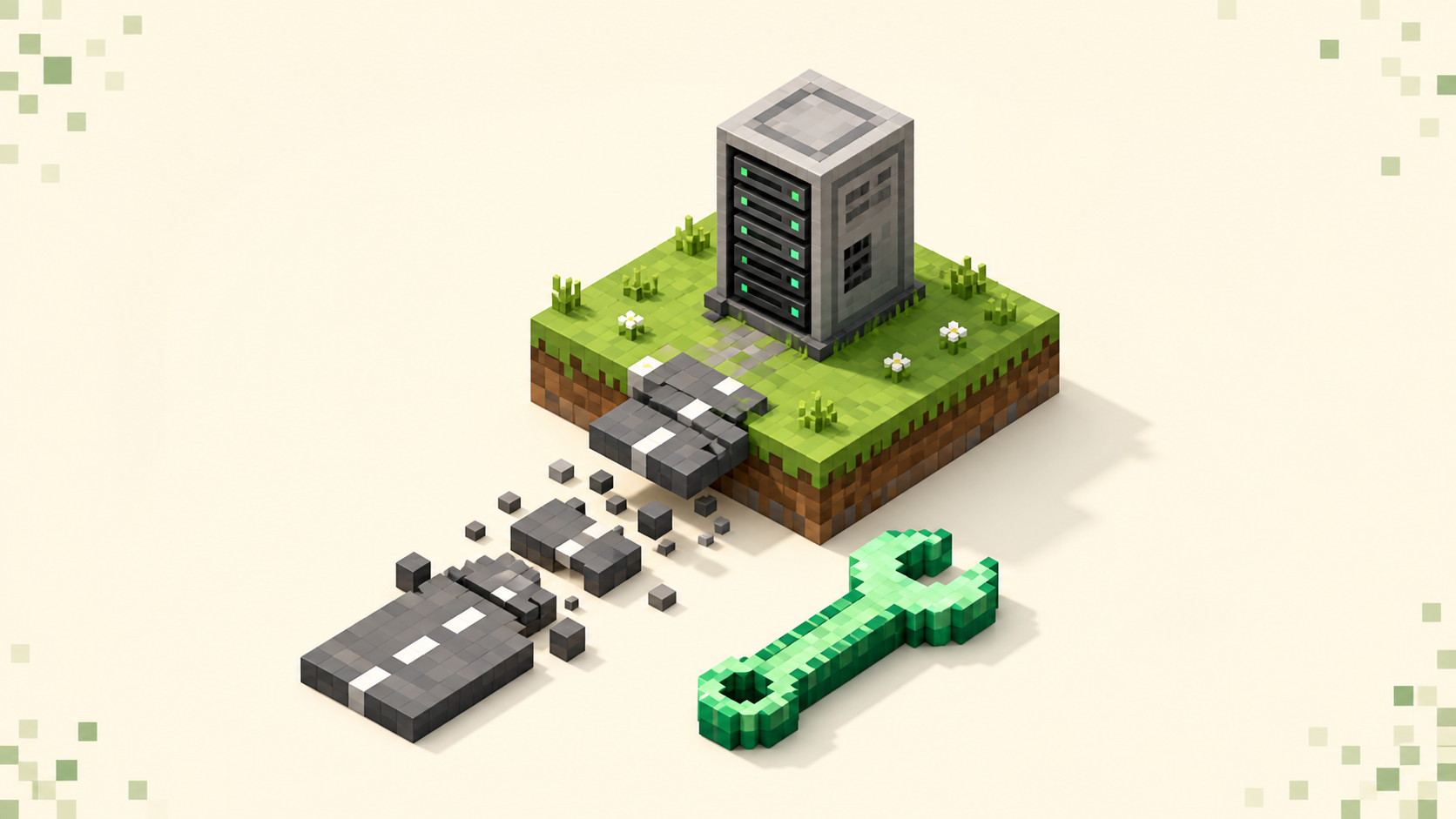
When you click a server and get a red "Connection failed: java.net.NoRouteToHostException" with the game never loading in, what it's telling you is that your network can't reach the server at all. The connection attempt never found a path to the destination, so nothing on the server side ever had the chance to answer. This isn't the server refusing you and it isn't a version mismatch — it's a routing problem on the way there.
It's almost always something on the path between you and the server — a firewall, a VPN, the wrong IP, or a blocked port — and you can work through all of them in a few minutes. The order that saves you the most time is to confirm the address is right, confirm the server is actually online before you assume it's dead, and then work through the network-side causes one at a time. If you're still getting your bearings with the basics of adding and connecting, the how to join a Minecraft server walkthrough covers that part.
What "No route to host" actually means
In plain terms, this error is your computer saying it couldn't find any path to deliver traffic to the server's address. The request didn't even arrive somewhere to be answered — it failed on the way out.
It's worth separating this from the two errors it gets confused with, because they don't have the same fix:
- No route to host — there's no path to the host. A network/routing block or a firewall is in the way, and it fails immediately.
- Connection refused — the address was reached, but nothing was listening on that port, or a firewall actively rejected the connection. The server's side answered with a "no."
- Connection timed out (or "took too long to connect") — your packets went out but got no reply at all, usually because the server is slow, overloaded, or silently dropping traffic.
"No route to host" points at your side of the connection far more often than the server's. A local firewall, a VPN sending your traffic somewhere that can't reach the server, or an address that doesn't lead anywhere reachable will all produce it. And notice that it fails fast instead of hanging the way a timeout does — that quick failure is a useful tell that something is actively blocking or misrouting you rather than just running slow.
Step 1: Double-check the IP address and port
The most common cause is also the cheapest to fix: a wrong, stale, or mistyped address. Re-type it carefully instead of trusting an entry your launcher autofilled, since a bad one will keep failing the same way every time.
A few classic mistakes to watch for: extra spaces at the start or end, the letter O where a zero should be, a pasted address that quietly brought "https://" or stray characters along with it, or an old IP for a server that has since moved. Get a single character wrong and it'll still look right to you, but the server just won't load.
It's worth understanding the address:port format too. Java's default port is 25565, so a plain address with no port is assumed to be on 25565. Bedrock's default is 19132. If a server uses a non-default port, it has to be written as address:port, and the wrong port can leave you unable to reach anything. If you were handed a numeric IP, confirm it's current — server IPs change, and an old one can now route to nothing, whereas a domain-style address like play.example.net is steadier because the owner can repoint it behind the scenes. Try the bare hostname first if the server runs on a standard port, then add a port only if the owner says to.
Step 2: Confirm the server is actually online before blaming your setup
Before you tear into your firewall, rule out the simplest explanation — that the server is just down — but do it without guessing. The fastest neutral check is to look the server up in the live rankings.
The homepage rankings and the full server list pull a live status for each listing, so a server that's responding right now shows up with an online indicator and a current player count. Find the one you're trying to join: if it's listed and showing players online, the destination is up and the problem is on the path to it. That's a useful second opinion versus your own connection, because the ping is coming from somewhere other than your machine. A "No route to host" on your end plus a server that's clearly online elsewhere adds up to a local network, firewall, or VPN issue — which is your signal to move on to Steps 3 and 4.
One exception worth calling out: if it's a server a friend is running at home, the listing check won't apply the same way. Confirm with them that it's actually started and that they've allowed it through their own firewall and router, because the unreachable side might be theirs rather than yours.
Step 3: Turn off a VPN, proxy, or "gaming network" that's blocking the route
A VPN is one of the most frequent causes of this specific error, because it reroutes all your traffic through its own network — and that network may have no path to the game server, or may block game ports outright. So the first thing to do is fully disconnect any VPN and try again. Don't just close the window; make sure the tunnel is actually down, since some clients reconnect on their own or keep running in the background.
The same goes for proxies, "game booster" and "ping reducer" apps, and LAN-emulation tools like Hamachi, Radmin VPN, and ZeroTier. Each of those adds a virtual network adapter that can hijack the route to the real internet address, so disable or exit them and retry. If the VPN is one you actually need — say, on a restricted school or work network — then the restriction itself is probably what's blocking the port, and switching to a normal home connection is the real fix rather than swapping in a different VPN. Re-test after each change one at a time so you know which thing was responsible instead of flipping everything off at once and losing track.
Step 4: Check your firewall and security software
A local firewall or antivirus can block the outbound connection and produce this exact error, and it often starts happening right after a Minecraft or Java update resets which apps are trusted. The beginner gotcha here is that the firewall prompt usually isn't named "Minecraft." Java Edition runs through Java, so the entry to look for is "Java(TM) Platform SE binary," "OpenJDK Platform binary," or javaw.exe — allow that one, not just "Minecraft."
On Windows, the path is Windows Defender Firewall > Allow an app through firewall, where you'll want to make sure Java/Minecraft is checked for your network type. Private versus Public matters: a public-network setting can block it while a private one lets it through. If you run a third-party security suite — Norton, Avast, McAfee, and the like — each of those has its own separate firewall that can override Windows', so check there too. Temporarily turning off real-time protection is a quick way to confirm whether it's the culprit, as long as you re-enable it right after.
Public, school, and workplace Wi-Fi commonly block game ports at the network level, and that's not something you can override from your own device. Testing on a phone hotspot or your home connection is the cleanest way to confirm the network is the blocker. And if nothing on your device seems to be at fault, restarting the router or modem can clear a transient routing problem.
When it's none of the above
If the address is right, the server is confirmed online, no VPN is running, and your firewall already allows Java, then the remaining causes are usually upstream — and not things you can fix from the client. A problem at your ISP's routing level, Carrier-Grade NAT, or a network issue at the server's host that only affects some regions will all leave you stuck. Those are either temporary or out of your hands, so waiting and trying again later is a reasonable move.
If only one specific server is unreachable while everything else connects fine, lean toward that server's address being wrong or changed, or its host being down. In that case, pick another active community from the rankings for now, fall back to the how to join a Minecraft server guide if you want the full connection walkthrough again, and use the server list to find one you already know is up.
FAQ
Why does this error appear right after I update Minecraft or Java?
An update can reset which programs your firewall trusts, so Java gets blocked again until you re-allow it. The catch is that the firewall entry is named after Java ("Java(TM) Platform SE binary," "OpenJDK Platform binary," or javaw.exe), not "Minecraft," so people allow the wrong thing and stay blocked. Re-check your firewall and make sure the Java entry is permitted for your current network type. A true version mismatch produces a different message ("Outdated client" or "Outdated server"), not "No route to host."
Can a wrong port give me "No route to host" instead of "Connection refused"?
It can go either way, which is why a sanity-check on the port is worth doing even when the error sounds like a pure routing problem. If the wrong port still leads to a real, reachable host, you'll usually get "Connection refused" because something answered and said no. But if the port is being filtered or dropped along the way — common on locked-down networks — the attempt never gets a reply about that port at all, and you can land on "No route to host." Write a non-default port as address:port, leave it off entirely when the server runs on the Java default of 25565, and only add one if the owner specifically told you to.
I'm on school or work Wi-Fi and only get this on Minecraft — what's going on?
Restricted networks like schools, offices, and some public Wi-Fi commonly block the ports games use, which leaves your computer with no route to the server even though everything on your end is fine. You usually can't override that from your own device. The reliable test is to switch to a different connection — a phone hotspot or your home network — and try again. If it connects there, the original network was blocking it, not your setup.